> For the complete documentation index, see [llms.txt](https://docs.itradingbot.net/llms.txt). Markdown versions of documentation pages are available by appending `.md` to page URLs; this page is available as [Markdown](https://docs.itradingbot.net/en/account/account-security-and-sessions.md).
# Account security and sessions
In the Security section, you can configure additional confirmation methods, check open sessions, and view the history of account protection.
Open [The ITradingBot panel](https://app.itradingbot.net/) and go to **Account → Security**.
Security is the protection.
### Before setting
The password is used with the email when you are authorized. PIN code, app authenticator and access keys additional ways to confirm login and important actions.
If you change the protection, you'll need to confirm the types of methods that are already connected. For example, if you have a PIN and an app authenticator set up, the form can request both. Follow all the steps on the screen and keep access to the connected modes.
{% hint style="info" %}
The last line of defense cannot be removed alone. To remove it, first connect another one. If you have lost access to the right method, contact support.
{% endhint %}
### Connect the PIN code
PIN is a separate digital code to confirm actions. It doesn't change the password you log in with.
1. In the PIN block, click Connect.
2. You can make up a six-digit PIN and re-enter it.
3. Confirm the connection and run additional checks if they appear.
4. Make sure the PIN is **Connected**.
To replace the PIN, click Change, enter the current code, a new code, and repeat it. Complete the requested confirmations.
### Connect the authenticator app
The authenticator app creates one-time codes. On the page , this method is called Application-Authenticator (2FA).
1. Click Connect in the relevant block. If other means of protection are already in place, confirm the action.
2. Add a new entry to your authenticator app: scan the QR code from the dashboard or use the displayed key to manually configure it.
3. Enter the six-digit code from the app in the dashboard and click **Confirm**.
4. Wait for the status **Connected**.
To change the settings, click Change. Confirm the action using the current methods, add a new entry to the proposed QR code and confirm it with the code. Delete the old record in the app after successfully completing the replacement.
{% hint style="info" %}
The QR code and the manual setup key contain the connection secret. Do not send them to other people or include them in support screenshots. This applies to PINs, passwords and disposable codes.
{% endhint %}
### Add the access key
In the Passkey/access key block, confirmation is executed through the browser and the selected key storage method. The options available depend on the device and browser.
1. Press the Add key.
2. Please specify a clear name to identify the key in the list and proceed.
3. Go through the requested checks and follow the browser's instructions to create the key.
4. Make sure the key is on the list.
In the list, you can rename, replace, or delete a key. When replacing the key, enter the name of the new key first and complete the verification. The old key remains active until successfully replaced.
You can connect up to five access keys. If there are multiple keys, one of the connected keys is sufficient to verify this type of protection; the other types of confirmation requested still need to be passed.
### Change the security without losing access
To remove the PIN or authenticator app, click Delete in the appropriate block. Use the key in the key. Confirm the removal and perform the checks that the panel will request.
If this is the last protection, the delete button is unavailable. Connecting the new method may also require validation so set it up while you still have access to the old one.
After the change, check the final status and list of keys. If the connection has been broken or the page says the result is unknown, update the status first, then decide whether to repeat the action.
The password is changed separately: in the Password block, click Change password to enter. Detailed steps are described in the article [Registration, entry and recovery](/en/account/registration-sign-in-and-account-recovery.md).
### Check the open sessions
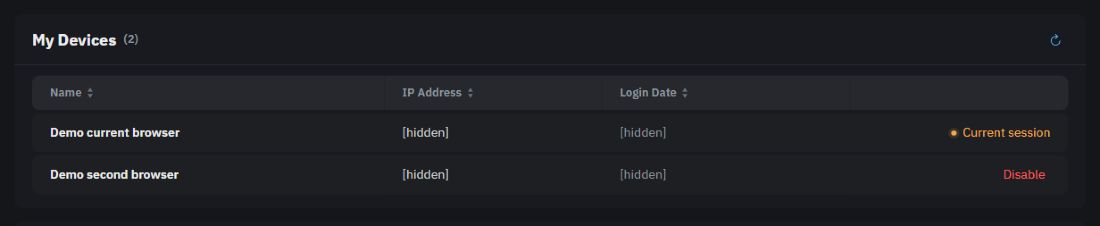
The My Device block shows the session of the account: the device name, IP address and login date.
1. Update the list with the update icon.
2. Find the session you want to turn off and click Turn off on the line.
3. After successful deactivation, the line will disappear from the list. If you need to disable several sessions, repeat the action for each.
The session you're in is marked as **The current session**. It doesn't have the shutdown button; to exit the current panel, use the Go to the Account menu.
An example of a list of sessions.
### See the security history
The security history block shows the events associated with the PIN, app authenticator, and access keys: connection, modification, deletion, and verification.
The recording shows the date, time and name of the event, as well as the available information about the device and IP address. For earlier recordings, click Show more. The update button loads updates.
Failure to verify does not in itself mean a foreign entry; it can also be an error when entering your own code. Compare the event with your actions. If you see a device or action that you don't know, turn off the other session and call support.
### If the action doesn 't confirm
Check which way the form is requesting. For 2FA, use the current code from the ITradingBot record in your app.
**The confirmation time has expired.** If you've received reports of too many attempts, wait for permission to repeat.
The key is not supported or the confirmation is canceled. Deleting the browser window does not complete the connection.
Access to the connected mode is lost. Type in support and indicate which method is unavailable and which message is displayed on the dashboard. — [Write in support](https://t.me/ITradingBot_Support) If you lose access to all the protective devices, you can only restore them through support. Don't send the secrets. Restoring a password via email does not in itself replace restoring additional protection.