> For the complete documentation index, see [llms.txt](https://docs.itradingbot.net/llms.txt). Markdown versions of documentation pages are available by appending `.md` to page URLs; this page is available as [Markdown](https://docs.itradingbot.net/en/account/exchange-accounts/exchange-account-api-keys.md).
# Exchange Account API keys
An additional API key allows you to connect a third-party service to your Exchange Account on Bybit. You determine what data and actions he has. For normal Exchange Account operation within ITradingBot, it is not necessary to create such a key manually.
This page is for the keys to an already created Exchange Account. Connecting your own Bybit or Binance account is described in the method of connection selection. — [Selecting the connection method](/en/account/exchange-accounts/choosing-a-connection-method.md)
### Select an account
1. In the Exchange switch, select the Exchange Account you want.
2. Open an Account → API key or an [API key page](https://app.itradingbot.net/api-keys).
3. Check the name of the account and the **Account UID**. The creation and modification of the keys will be his.
If you don't have an account yet, start with the article Exchange Account: Creating and Deploying. — [Exchange Account: Create and Device](/en/account/exchange-accounts/exchange-account-creation-and-setup.md) When the status is created, wait for the training. When Connected key management can be accessed. When you are not able to access the page, look for the message; it may not be possible to create, edit, or delete it.
The Sub-Account Key section displays additional keys. ITradingBot's official keys are not shown here. Each key has access, permissions, IP addresses and dates. If next to the key number is +, the list is not yet loaded.
### Create a key
1. Click Create the key.
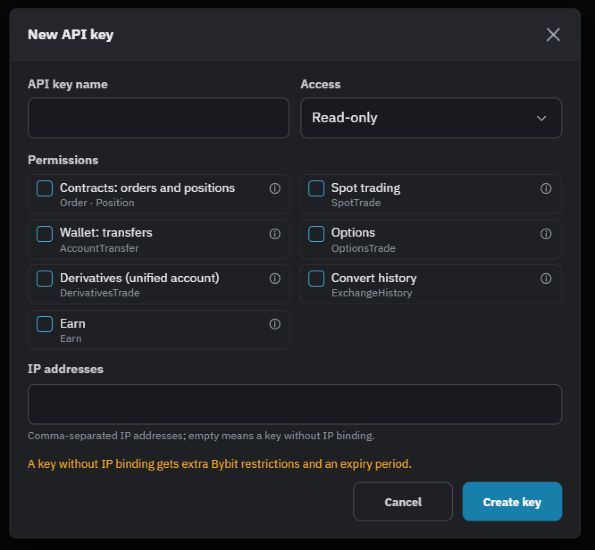
2. If you want, enter the API key name to distinguish it from others, such as the name of the connected service. You can't change that name later on.
3. Select Access, select the necessary permissions, and fill in the **IP addresses** if the service provided them to bind the key.
4. Click Create a form key and go through the security confirmation in the suggested way.
Creating, modifying and removing a key requires verification by one of the configured security methods: a PIN, an authenticator app, or an access key. The setting is described in the article [Account and session protection](/en/account/account-security-and-sessions.md).
Creating an additional APIAccess Reading only is default; rights are not yet marked.
### Set up access, permissions and IP
Only the reading is selected by default. This key is designed to obtain data within the scope of the selected rights. Depending on the rights, it can be a warrant, a job with a position or a transfer between wallets.
We need to pick at least one group. Please note only what is required for the service to be connected:
* **Contracts: orders and positions** work with orders and positions of the contract market.
* Spot trading is a spot market operation.
* **Wallet: transfers** transfers between the wallets of this sub-account, for example Financing and Single. This group does not give an outward address or a transfer between different sub-accounts.
* **Options** and Derivatives (single account) corresponding trading rights of Bybit.
* Conversion history view the history of exchanges.
* **Earn** work with Bybit Earn products as part of the availability for this account.
The information button next to the group explains its purpose. The newsletter does not remove the Read-Only restriction and does not guarantee the availability of any Bybit product or compatibility with any third-party service. The right to an external opinion in this form is not granted. At the same time, trade rights also allow for financial results, including losses.
**IP addresses** restrict the access of the service to the key. Enter the addresses that the service has reported for this particular connection, through the dash. An empty field means no connection to the IP. For such keys, additional restrictions and term limits apply from Bybit.
Check the field is valid until in the card. The inscription Unlimited refers to the displayed time frame and does not promise that the key will always work regardless of the feedback, rights, IP or account status.
### Keep the key and secret
After successful creation, the Save Key and Secret window will open with two separate values: API-key and API-secret.
Copy both values and save them in a secure location, then enter the appropriate fields of the selected third-party service. Do not share the secret in your correspondence or support and do not post it on screenshots. When the data is saved, click I saved the key and secret.
The secret comes out once. Once you close the window or restart the page, you can't get it from the key list. The API key itself remains visible on the card, but it doesn't replace the secret. If the secret is lost, a new key is required; remove the unnecessary old key after checking which services use it.
### Change the existing key
In the card, click Change. You can change access mode, rights group and IP address. Click Save and confirm the account protection method, then check the updated card.
The form replaces the IP rights and list with the values indicated. The deleted group ceases to be transmitted as authorized; the empty IP field removes the previous attachment. This may change or stop the service that uses the key. The name of the key and the secret through this form do not change; the secret does not appear again.
If the old key has a non-supported permission warning, check the permissions and save the settings: non-supported permissions are removed from the new set. Don't think the old key is already limited just because it's not available among the available keys.
### Remove the unnecessary key
Click Delete in the card. In the confirmation window, enter the name and the key itself, click Remove key, and go through security confirmation.
Once the key is successfully retrieved, it stops working and the users of the service lose access. Canceling this operation is not provided: create another key to make a new connection.
Revocation of the key is not a command to cancel orders or close positions. Don't think of it as a stopover for all trades, check the remaining orders, positions and other connections separately. Exchange Account itself cannot be deleted by this button.
### If the action is not completed
The button is not available. Check the selected account, its status, list load, connection and page message. Until the result of the previous action is established, new changes may be blocked.
The exchange has rejected the request. Check the selected IP addresses for permissions, format and relevance. If you limit the frequency of requests, wait for the time specified in the dashboard. Do not include additional rights without understanding the reason for the error.
The result is unknown, but after the connection is disconnected, the key could be created, changed, or deleted. Wait until the list is read and check it before you repeat it. If a new key is found and the secret has not been obtained, the secret cannot be reopened.
If the situation is not clear, [Please write to support ITradingBot](https://t.me/ITradingBot_Support). Enter the account name, the action performed, and the error text without the API secret, passwords, and confirmation codes.