> For the complete documentation index, see [llms.txt](https://docs.itradingbot.net/llms.txt). Markdown versions of documentation pages are available by appending `.md` to page URLs; this page is available as [Markdown](https://docs.itradingbot.net/en/account/free-pro-and-vip-terms-and-payment.md).
# FREE, PRO and VIP: terms and payment
Here are the terms of the free Binance and Bybit connection, the FREE and PRO options, the annual PRO VIP tools and the subscription fee.
The FREE and PRO limits below apply to Binance's main robots and Bybit's own API connections. Check the limits of the Exchange Account and the hedge robots in the dashboard of the selected robot.
### Free terms and conditions for Binance
To connect your own account on Binance to the FREE robot , one of two conditions is sufficient:
* The account is registered via the ITradingBot reference link. — [Referral link to ITradingBot](https://accounts.binance.com/register?ref=960472302)
* **Or** the account was registered on or after January 11, 2025 and not linked to a third-party referral.
For an account with our referral link, the date of registration is not limited.
Follow the instructions for connecting to your Binance account. — [Linking to Binance account](/en/binance-robot/binance-robot-connecting-your-own-account.md) If you have a FREE access error when you connect, please contact ITradingBot support with the text. — [support for ITradingBot](https://t.me/ITradingBot_Support) Do not send API keys to the mail.
### The FREE terms and conditions for Bybit
For the FREE version of Bybit, one of two conditions is sufficient:
* Your Bybit account is registered via the ITradingBot referral link. — [Referral link to ITradingBot](https://partner.bybit.com/b/ITRADINGBOT)
* **Or** when you create an API key on Bybit, you've chosen the ITradingBot application.
When you manually create a key, open the section Management API → Create a new key on Bybit. Select **API keys created by the system**, then Connect to Third-Party Applications (Connect to Third-Party Applications) and enter ITradingBot in the list of applications.
Further account connections are described in the article [Bybit robot: connecting your account](/en/bybit-robot/bybit-robot-connecting-your-own-account.md).
### Free access
Free level: up to 1000 robot tasks, 500 ISignal tasks and 5 indicators in strategy.
The FREE also has a trading terminal, grid calculator, backtest, screener and monitoring. The above conditions apply to the exchange account.
### PRO more ISignal tasks and indicators
Up to 1,000 robot tasks, 1,000 ISignal tasks and **14 indicators in the strategy**. TradingView signals for Binance are also available in PRO.
Available periods and current cost are shown in the Payment form. — [Paying for your subscription](https://app.itradingbot.net/pay)
Check the number of tasks available on the selected robot page: it depends on the robot and the way it connects.
### VIP tools with annual PRO
When you buy a **PRO for one year**, you get the PRO capabilities and access to all VIP tools.
Most of these tools are backstory:
* Multimodels checking settings on several trading tools. — [Multimodels (multi mode)](/en/tools/calculations-and-verification/backtester-first-calculation.md)
* grid optimizer overview of the given combinations of parameters on the history. — [The grid optimizer](/en/tools/calculations-and-verification/order-grid-optimizer-in-the-backtester.md)
* [The hedge test](/en/tools/calculations-and-verification/backtester-model-parameters-and-limitations.md) is a strategy calculation using a classic hedge robot.
* [Accelerated mode](/en/tools/calculations-and-verification/backtester-model-parameters-and-limitations.md) Accelerated calculation for supported settings. When the header is turned on, this mode is not available.
The annual PRO also opens up an aggressive hedge robot mode and Monte Carlo mass tests in its emulation. — [The aggressive regime of the hedge robot](/en/hedge-robots/aggressive-hedge-setup-and-management.md) — [The mass tests of Monte Carlo in his emulation](/en/hedge-robots/aggressive-hedge-emulation.md)
The VIP tag is displayed on the **Account** page. To connect, select the annual period in the Payment form. — [Paying for your subscription](https://app.itradingbot.net/pay)
### Where to see your subscription
Open the **Account**. The profile card shows the status of the payment, the amount and date of payment:
The Change subscription button opens the payment form. It is also available in the menu through Services → Payment.
### Make an account
1. Open a subscription under your account. — [Paying for your subscription](https://app.itradingbot.net/pay)
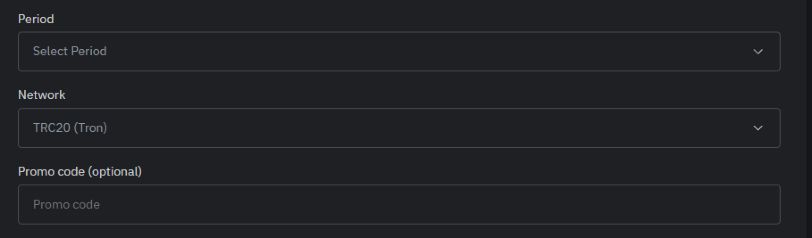
2. In **The period** field, select the correct option. Focus on the conditions shown in the form.
3. Select **The network** to translate USDT. The form is available in TRC20 (Tron) and BEP20 (BSC). The sender must maintain the selected network.
4. If you have a promo code, enter it in the Promo code field (not required). Otherwise, leave the field empty.
5. Click Create an account and check the final amount, network, address and payment deadline.
Creating an account doesn't mean you're paid. Next step is to translate the details of this account.
Select the period, the network and, if necessary, the promo code.
### Pay the bill .
1. Copy the address to translate with the Copy button or use the QR code from the account.
2. In your wallet or on the exchange, select USDT and the same network as the account.
3. Compare the address and the amount to be received. Please take into account the sender's commission to receive the invoice amount.
4. Send the transfer within the time limit indicated on the page.
5. Go back to the account and wait for the message The account is paid!
The transfer network must match the account network. Don't fake the old payment address and don't send another token.
### If only part of the amount is received
The bill shows how much you've already received and how much you have to pay. You can also look at individual incomes.
Before you pay, check that the account is still valid. Focus on the balance and current account details. If the first transfer is still in the works, check the status of the original with the sender.
### If you need to change or cancel an account
Until the transfer is sent, you can click Cancel Current Account, then select another period or network and create a new one.
If the account is due, do not send funds to the account holder. For a new payment, go back to the form and get the current account.
If the transfer has already been sent, check the status first. If the status of the transfer and the account does not match, please contact support.
### Check the payment and subscription period
At the bottom of the page is my payroll. It displays the date, amount and link to the transaction when it is available.
After you have successfully paid off , open an **Account** and check the status and date of subscription Payment before: For the next period, use the same payment form and then compare the date again.
### If something goes wrong,
If you have not downloaded periods, created an account, or lost a connection, go back to the payment page and check your current account and history. Don't repeat the transfer just because the confirmation hasn't come through yet.
If the account is paid and the subscription has not been updated or the transfer sent is not reflected in the account, please write to ITradingBot support. — [support for ITradingBot](https://t.me/ITradingBot_Support) Please specify the account number, network, amount and link to the transaction or its TXID. If there is an error, attach the text or screenshot.