> For the complete documentation index, see [llms.txt](https://docs.itradingbot.net/llms.txt). Markdown versions of documentation pages are available by appending `.md` to page URLs; this page is available as [Markdown](https://docs.itradingbot.net/en/account/funds/conversion-of-assets.md).
# Conversion of assets
Conversion exchanges one coin for another inside the selected Bybit account in Exchange Account mode. First, you select the coins and the amount, then you ask the exchange for the exchange rate and confirm the terms.
### Set up an account
Select an active [Exchange Account](/en/account/exchange-accounts/exchange-account-creation-and-setup.md). Conversion requires validated [Verification](/en/account/verification.md); if the result is still updated in the system, wait for completion.
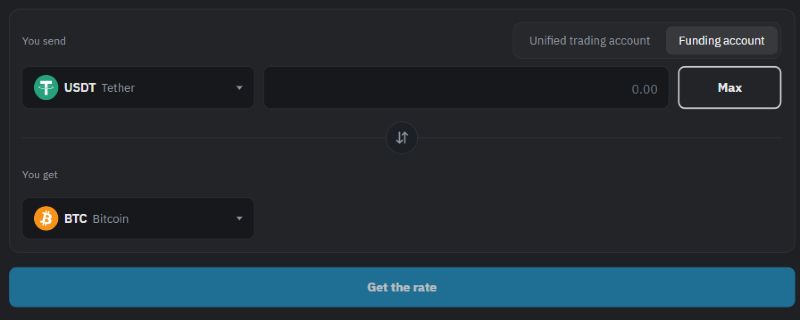
Open [The conversion](https://app.itradingbot.net/convert) page and check your selected sub-account. In **The account** field, enter **The financial account** or the Unified Trading Account. Both sides of the exchange are related to this account: the original coin is written off and the received coin is credited.
### Select the coin and the amount
1. In the Give field, select the coin you want to exchange.
2. In the Get field, select the desired coin from the available list. The options depend on the account and the original coin.
3. Please indicate **The amount of the exchange** in the given coin. Consider the balance and the form limitations: the minimum and maximum amount, the permissible number of marks after the punctuation.
4. If necessary, press **Maximum**: the button sets the amount with the balance and the maximum of the transaction in mind.
The market prices on the page help guide you, but the terms of a particular exchange will only appear after the course is requested.
Selection of wallet and coins for exchange. USDT and BTC is shown as an example; the exchange rate was not requested.
### Request the course and confirm the exchange
Click **Get the course**. In the confirmation window , check:
* Give me the original coin and the write-off.
* You get a coin and the proposed amount of the deposit.
* The price of the coin is the original unit.
* **The rest of the time** how long before you can confirm this quote.
If conditions are right, click **Confirm the exchange** before the timer ends. Once confirmed, you can't cancel the exchange.
If it's time to confirm, that quote is no longer valid. Request a new course and check the amounts again.
### Wait for the result
The status of the shipment and processing means that the final result has not yet been received. Closing the window after confirmation doesn't cancel the operation.
After the status is completed, check the actual amount written and credited, the rate of execution and the balance of the selected account. The results are available in the **Conversion history**. One shown amount without performance status does not yet confirm the completion of the exchange.
### If the exchange is not complete
* If you haven't confirmed the exchange, ask for a new quote after the old one is finished. Check her terms before you confirm.
* Check the error message and the availability of the selected coins, the amount and the status of the account before another attempt.
* The result is accurate. Do not re-register the same exchange; if necessary, contact [support](https://t.me/ITradingBot_Support) with the operation number and message on the screen.
If the connection is lost or the window is long overdue, check the history first. The lack of an answer doesn't mean the exchange didn't happen. Another unfinished financial transaction on this account may also temporarily block the new conversion.