> For the complete documentation index, see [llms.txt](https://docs.itradingbot.net/llms.txt). Markdown versions of documentation pages are available by appending `.md` to page URLs; this page is available as [Markdown](https://docs.itradingbot.net/en/account/registration-sign-in-and-account-recovery.md).

# Registration, sign-in, and account recovery

<mark style="color:$tint;">Create an ITradingBot account or sign in to an existing one. If you forgot your password, you can restore it by the email you have registered.</mark>

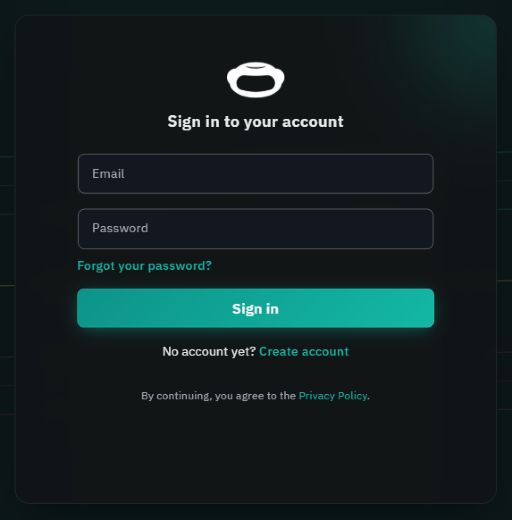
<figure><img src="https://1830394604-files.gitbook.io/~/files/v0/b/gitbook-x-prod.appspot.com/o/spaces%2F6lHX8ZJXkBHNJALLsrDj%2Fuploads%2F5BClgrD2FVYu1wCf2ofR%2Fsign-in-en-20260914.jpg?alt=media" alt="The form of the entry ITradingBot: Email, Password, Sign in, Create account and Forgot your password?"><figcaption><p>Sign in login, Create account registration, Forgot your password? password recovery.</p></figcaption></figure>

### Create an account

1. <mark style="color:$tint;">Open</mark> [<mark style="color:$tint;">The ITradingBot panel</mark>](https://app.itradingbot.net/) <mark style="color:$tint;">and click Create an account.</mark>
2. <mark style="color:$tint;">Please indicate the email address you have access to and click Create an account.</mark>
3. <mark style="color:$tint;">Confirm the email with a letter code and enter the password by following the form instructions. Once you've registered, you'll be in the dashboard.</mark>

### Connect the Telegram

<mark style="color:$tint;">After registering, you must connect your Telegram account. Without this bond, we can't work with the platform tools.</mark>

<mark style="color:$tint;">The settings for Telegram must include the</mark> <mark style="color:$tint;"></mark><mark style="color:$tint;">**User name (@nik)**</mark><mark style="color:$tint;">. The user name is specified separately from the profile name. Without @nik, the platform won't work.</mark>

1. <mark style="color:$tint;">In the Add Telegram account window, click</mark> <mark style="color:$tint;"></mark><mark style="color:$tint;">**Activate**</mark><mark style="color:$tint;">.</mark>
2. <mark style="color:$tint;">Continue in the open bot, then return to the panel.</mark>

<figure><img src="https://1830394604-files.gitbook.io/~/files/v0/b/gitbook-x-prod.appspot.com/o/spaces%2F6lHX8ZJXkBHNJALLsrDj%2Fuploads%2FPwFkPe5ppt5UqY0wFAlu%2Ftelegram-connect-en-20260914.jpg?alt=media" alt="Adding a window Telegram Account with Activate button for binding Telegram"><figcaption><p>Click Activate to continue the link in Telegram</p></figcaption></figure>

<mark style="color:$tint;">You can also copy the command from the attachment window and send it to the bot that's shown in that window. Use the command from your dashboard.</mark>

### Go to the panel

1. <mark style="color:$tint;">Open</mark> [<mark style="color:$tint;">The ITradingBot panel</mark>](https://app.itradingbot.net/)<mark style="color:$tint;">.</mark>
2. <mark style="color:$tint;">Enter your account email and password, then click Enter.</mark>
3. <mark style="color:$tint;">If you receive an additional confirmation request, follow the steps shown on the screen.</mark>

### Restore the password

1. <mark style="color:$tint;">On the login page, click Forgot your password?</mark>
2. <mark style="color:$tint;">Enter your email account and click Continue. This address will be sent a password recovery code.</mark>
3. <mark style="color:$tint;">Enter the resulting code on the recovery page and follow the instructions to enter the new password.</mark>
4. <mark style="color:$tint;">Go back to the login page and enter a new password.</mark>

<mark style="color:$tint;">If you're already in the dashboard, open</mark> <mark style="color:$tint;"></mark><mark style="color:$tint;">**Account → Security**</mark><mark style="color:$tint;">. In the Password entry, click Change password and follow the instructions for the form that you have opened.</mark>

<figure><img src="https://1830394604-files.gitbook.io/~/files/v0/b/gitbook-x-prod.appspot.com/o/spaces%2F6lHX8ZJXkBHNJALLsrDj%2Fuploads%2FWlYY71yi7gXzDkpfIZa6%2Faccount-security-password-en-20260914.jpg?alt=media" alt="Security: Login password block with the Change password button."><figcaption><p>In the English interface: Security → Login password → Change password.</p></figcaption></figure>

### If you can 't get in

<mark style="color:$tint;">The email is not coming. Check the address and folder Spam. If the form suggests re-sending the code, use this button.</mark>

<mark style="color:$tint;">Check the email, keyboard layout and Caps Lock. If you can't remember your password, use recovery.</mark>

<mark style="color:$tint;">No access to the email or requested confirmation, please</mark> [<mark style="color:$tint;">Write in support</mark>](https://t.me/ITradingBot_Support) <mark style="color:$tint;">and describe the steps you've taken. Password disclosure does not replace re-accessing email or other authentication methods.</mark>

{% hint style="info" %}
Enter the password and confirmation codes only in the appropriate forms. Do not send them to support or include them in the contact screenshots.
{% endhint %}
