> For the complete documentation index, see [llms.txt](https://docs.itradingbot.net/llms.txt). Markdown versions of documentation pages are available by appending `.md` to page URLs; this page is available as [Markdown](https://docs.itradingbot.net/en/binance-robot/binance-first-task-and-launch.md).

# Binance: first task and launch

<mark style="color:$tint;">The task specifies the trading pair, direction, volume and operating rules of a typical Binance robot. First, keep it off and check the settings, then go to boot.</mark>

### Get the robot ready .

<mark style="color:$tint;">Connect an account under the article</mark> [<mark style="color:$tint;">Binance robot: connecting your account</mark>](/en/binance-robot/binance-robot-connecting-your-own-account.md) <mark style="color:$tint;">and open the</mark> [<mark style="color:$tint;">Binance robot tasks</mark>](https://app.itradingbot.net/binance-robot)<mark style="color:$tint;">. Make sure you have the right account.</mark>

<mark style="color:$tint;">If the screen suggests you turn on the robot, go to its settings. —</mark> [<mark style="color:$tint;">The settings</mark>](https://app.itradingbot.net/binance-robot-settings) <mark style="color:$tint;">Before you start, check the robot's existing tasks and global limitations.</mark>

<mark style="color:$tint;">The Start button opens the question of setting the number of simultaneous active tasks to zero. Yes sends a drop of the limits before launching; No starts the service without this drop. Net in this window does not cancel the launch. After the action, check the status of the robot and the saved limits, then return to the task.</mark>

### Collect the task settings

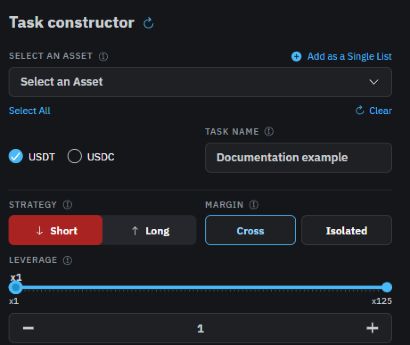
<figure><img src="https://1830394604-files.gitbook.io/~/files/v0/b/gitbook-x-prod.appspot.com/o/spaces%2F6lHX8ZJXkBHNJALLsrDj%2Fuploads%2FC4Sl0f8mPNRxiVyMjY7v%2Fbinance-task-basic-en-20260914.jpg?alt=media" alt="Task constructor: tool selection, task name, direction, margin and leverage in English interface."><figcaption><p>Demonstration example: the name and selected parameters are not a ready-made trading setup.</p></figcaption></figure>

1. <mark style="color:$tint;">Select the</mark> <mark style="color:$tint;"></mark><mark style="color:$tint;">**USDT**</mark> <mark style="color:$tint;"></mark><mark style="color:$tint;">or</mark> <mark style="color:$tint;"></mark><mark style="color:$tint;">**USDC**</mark> <mark style="color:$tint;"></mark><mark style="color:$tint;">group and the desired trading pairs. If you select a few pairs, the form creates separate tasks for the chosen instruments.</mark>
2. <mark style="color:$tint;">Enter the task name to find it in the list.</mark>
3. <mark style="color:$tint;">Check the Long/Short direction, type Margie and</mark> <mark style="color:$tint;"></mark><mark style="color:$tint;">**Leverage**</mark><mark style="color:$tint;">. These parameters are part of the settings of the task being created.</mark>
4. <mark style="color:$tint;">Enter the order volume. That's the volume of the first order in the stablecoin. safety orders are set separately: their number, step, dynamic step and marting gauge affect subsequent orders.</mark>
5. <mark style="color:$tint;">Set up</mark> <mark style="color:$tint;"></mark><mark style="color:$tint;">**Profit mode**</mark> <mark style="color:$tint;"></mark><mark style="color:$tint;">and the corresponding exit fields, as well as Stop Market. Before you save, check the values and hints of the selected mode.</mark>
6. <mark style="color:$tint;">Select the available method in the Task Signal field. For ISignal, fill in the terms constructor; for</mark> <mark style="color:$tint;"></mark><mark style="color:$tint;">**TradingView**</mark> <mark style="color:$tint;"></mark><mark style="color:$tint;">or</mark> <mark style="color:$tint;"></mark><mark style="color:$tint;">**TradingView + Robot**</mark><mark style="color:$tint;">, set up the appropriate address notifications from the connection block. The manual task is created in Signalless mode.</mark>
7. <mark style="color:$tint;">Check the cycle count, and this robot's clue warns that the next cycle is triggered without the initial signal. Consider this when you set up repetitions.</mark>

<mark style="color:$tint;">If the form has identified an error or does not allow the creation, correct the fields. Available pairs, stock market restrictions and task limits are checked for the selected account; there is no set of values for all instruments.</mark>

### Save the task from the off

<figure><img src="https://1830394604-files.gitbook.io/~/files/v0/b/gitbook-x-prod.appspot.com/o/spaces%2F6lHX8ZJXkBHNJALLsrDj%2Fuploads%2FBQ0Drb6U9GNjTOmLGxT9%2Fbinance-task-disabled-en-20260914.jpg?alt=media" alt="The bottom of the constructor with the signal fields and cycles marked Create disabled and the Create a task button."><figcaption><p>Create disabled keeps the task disabled. For example, the trade settings are not filled, the create button is not available.</p></figcaption></figure>

1. <mark style="color:$tint;">Before you press the Create off button, select Create off.</mark>
2. <mark style="color:$tint;">Click Create a task and wait for the list to update.</mark>
3. <mark style="color:$tint;">Find the task created by name and pair. Check the direction, volume, leverage, signal, cycle and off state.</mark>

<mark style="color:$tint;">If you select multiple pairs, check every line you create. If you make a mistake or lose a connection, update the list first. Some of the tasks might have been saved. Re-sending the entire form can create duplicates.</mark>

### Turn on and run

<mark style="color:$tint;">When the settings are checked, open the multipoint menu in the taskbar, select Enable and confirm. Wait for the status of the line to be updated.</mark>

<mark style="color:$tint;">In ISignal, the future work depends on the setup conditions. TradingView and TradingView + Robot need customized external alerts. Receiving the signal does not confirm the execution of the order.</mark>

<mark style="color:$tint;">For manual launch of a signalless mission, the missile icon is used. The push sends the task force to run the task and can lead to a real trade. Use it after you check the trading settings.</mark>

### Check the work and results

<mark style="color:$tint;">The status is included in the task list and the entry in the block Active trades show different stages. The task involved does not yet mean an open position. Check the appearance of the trade, the order related and the actual status of the position.</mark>

<mark style="color:$tint;">To disable the task, open the menu, select Disable, and confirm the task. After the update, check the status of the line and separate active trades.</mark>

<mark style="color:$tint;">Don't consider disabling a task as confirmation of a position closure. In active trades, there are separate actions called Cancel, Close, and Cycle. After each command, check the result by order and position, not just the interface message.</mark>
