> For the complete documentation index, see [llms.txt](https://docs.itradingbot.net/llms.txt). Markdown versions of documentation pages are available by appending `.md` to page URLs; this page is available as [Markdown](https://docs.itradingbot.net/en/binance-robot/binance-order-grid-calculation-and-pair-selection.md).

# Binance: order grid calculation and pair selection

<mark style="color:$tint;">In the form of a regular</mark> [<mark style="color:$tint;">Binance robot</mark>](https://app.itradingbot.net/binance-robot)<mark style="color:$tint;">, you can pre-calculate orders and check the selected instruments. The calculation shows what's coming from the input parameters and the market data that's being uploaded. It does not place orders or confirm that the exchange will accept or execute them.</mark>

<mark style="color:$tint;">The designation of the main form fields is described in</mark> [<mark style="color:$tint;">The task parameters reference</mark>](/en/binance-robot/binance-task-parameters.md)<mark style="color:$tint;">.</mark>

### Open the calculation for the tool

1. <mark style="color:$tint;">Select a pair and fill in the task parameters: direction, volume of first order, safety orders, leverage and exit mode.</mark>
2. <mark style="color:$tint;">Look at the chart of the selected pairs. It counts when you change parameters and filters.</mark>
3. <mark style="color:$tint;">In</mark> <mark style="color:$tint;"></mark><mark style="color:$tint;">**The grid**</mark> <mark style="color:$tint;"></mark><mark style="color:$tint;">column, click</mark> <mark style="color:$tint;"></mark><mark style="color:$tint;">**Open the grid**</mark><mark style="color:$tint;">. If the warning is given instead of the button, first you can figure it out.</mark>

<mark style="color:$tint;">You can open up the calculations of several comparison tools. Changing the form settings updates the open windows. The prices shown are calculated: the loaded calculated price of the instrument is taken as the basis, not the price of the trade already made.</mark>

### Read the pairs table

<mark style="color:$tint;">For the tool, the</mark> <mark style="color:$tint;"></mark><mark style="color:$tint;">**tickSize**</mark> <mark style="color:$tint;"></mark><mark style="color:$tint;">price step,</mark> <mark style="color:$tint;"></mark><mark style="color:$tint;">**StepSize**</mark> <mark style="color:$tint;"></mark><mark style="color:$tint;">number step, minQty/maxQty number boundary, minimum</mark> <mark style="color:$tint;"></mark><mark style="color:$tint;">**MinValue**</mark> <mark style="color:$tint;"></mark><mark style="color:$tint;">denomination, price, 24 hour volume and listing date are shown.</mark>

<mark style="color:$tint;">The</mark> <mark style="color:$tint;"></mark><mark style="color:$tint;">**Leverage**</mark> <mark style="color:$tint;"></mark><mark style="color:$tint;">press opens the leverage steps and the volume allowed for the instrument. They can vary between pairs. If you have</mark> <mark style="color:$tint;"></mark><mark style="color:$tint;">**No data on the asset**</mark><mark style="color:$tint;">, do not count the check as passed.</mark>

### Set the tool selection

* <mark style="color:$tint;">**24 hours**</mark> <mark style="color:$tint;"></mark><mark style="color:$tint;">is the minimum daily trading volume.</mark>
* <mark style="color:$tint;">Leverage volume is the minimum limit of the nominal volume that the chosen leverage level must allow.</mark>
* <mark style="color:$tint;">**Listing**</mark> <mark style="color:$tint;"></mark><mark style="color:$tint;">Minimum number of days from the date of listing.</mark>
* <mark style="color:$tint;">Maximum. tickSize maximum price step in percentage of the price of the instrument. The blank field in current form uses the threshold of 0.1%; it does not turn off this check.</mark>
* <mark style="color:$tint;">**Spot Bybit / Spot Binance**</mark> <mark style="color:$tint;"></mark><mark style="color:$tint;">the presence of the instrument in the relevant spot market list. Two flags require both lists; the task itself remains the task of the futures robot.</mark>
* <mark style="color:$tint;">Excluded TRADIFI exclusion of instruments of this category from the calculation selection.</mark>

<mark style="color:$tint;">The reason in the grid column could mean both a limitation of the calculation and a failure to match your filter. It doesn't always mean a ban on the stock market.</mark>

### Share of funds and hedge reserves

<mark style="color:$tint;">The switch takes into account the deposit and the field My funds, % set the calculation budget of one full position. It's divided into a net and a hedge fund, %. None of these fields holds a Binance fund or opens a counter position.</mark>

<mark style="color:$tint;">The block shows the net budget, the hedge budget, their amount and the line needed on the net. The latter shows the greatest need among the tools considered, rather than the total budget of all the tasks selected.</mark>

<mark style="color:$tint;">The calculation is based on the loaded balance. Check the funds available for new orders separately on the exchange, taking into account existing positions and orders. If the balance is unknown or the share is not specified, the deposit filter is not applied.</mark>

### What changes Maximum leverage

<mark style="color:$tint;">When creating tasks, this switch selects the leverage for each instrument separately by the steps and size of the grid with the hedge stock. This value is seen in the pair line and used to create a task.</mark>

<mark style="color:$tint;">Check it out for each pair you choose. The main</mark> <mark style="color:$tint;"></mark><mark style="color:$tint;">**Leverage**</mark> <mark style="color:$tint;"></mark><mark style="color:$tint;">field remains mandatory and is used where the value cannot be found. Selection does not increase the volume of the first order and is not a risk recommendation.</mark>

<mark style="color:$tint;">Because of the different leverage levels, the creation can be executed by several consecutive requests. If there is an error, check the tasks already created before repeating.</mark>

### Read the order grid

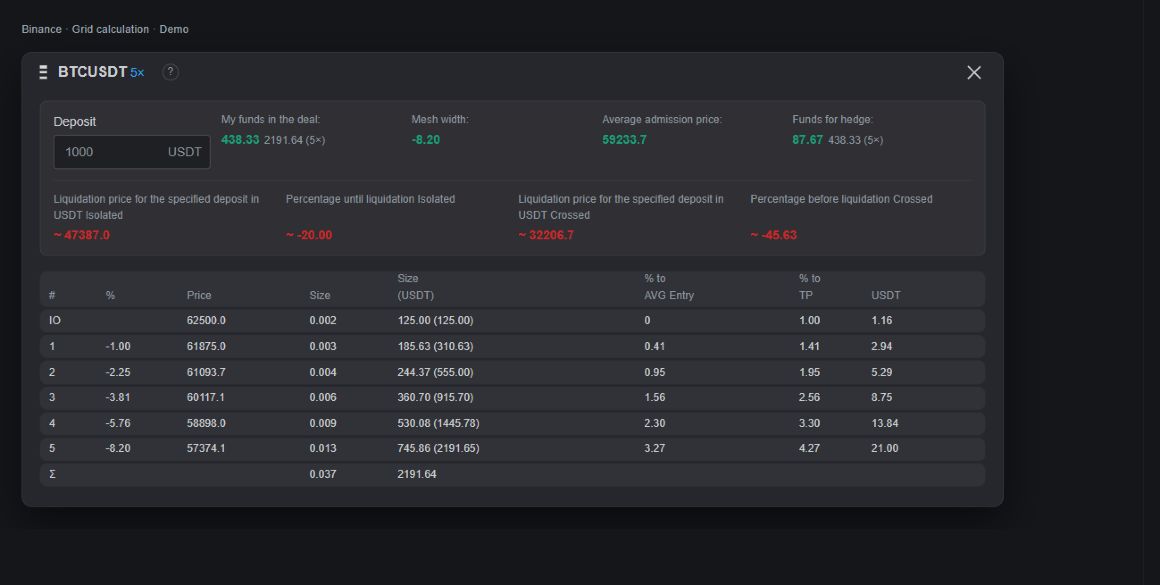
<mark style="color:$tint;">For a regular limit grid, the window shows the first and safety orders: number, distance from the first price, estimated price, number of assets and nominal volume. In the brackets next to the volume, the sum is accumulated; the line Σ contains the results.</mark>

<mark style="color:$tint;">The price and quantity are rounded to the instrument's steps. So the same parameters can give different results for different pairs. Lot's Step means that the rounding didn't allow the next order to grow more than one unit with a given multiplier.</mark>

<mark style="color:$tint;">Under the table:</mark>

* <mark style="color:$tint;">My funds in the trade are a net denomination spread over the leverage.</mark>
* <mark style="color:$tint;">The width of the grid is the distance to its last computation level.</mark>
* <mark style="color:$tint;">The average price of the entrance is average if the entire simulated grid is executed.</mark>
* <mark style="color:$tint;">**Hedge funds**</mark> <mark style="color:$tint;"></mark><mark style="color:$tint;">separate accounting stock on the interest introduced.</mark>

<mark style="color:$tint;">In the ISignal Averaging mode, the window has a different structure. His calculation does not determine the actual prices of future signals.</mark>

<figure><img src="https://1830394604-files.gitbook.io/~/files/v0/b/gitbook-x-prod.appspot.com/o/spaces%2F6lHX8ZJXkBHNJALLsrDj%2Fuploads%2FmCCQKew5uAKVzEnyqXqn%2Fvisual-pass-20260914-binance-grid.jpg?alt=media" alt="A demonstration of the grid calculation BinanceThe following are the order lines, the total volume, the average entry price and the own funds."><figcaption><p>A demonstration of the grid calculation BinanceThe following are the order lines, the total volume, the average entry price and the own funds.</p></figcaption></figure>

### Consider the limits of the calculation

<mark style="color:$tint;">The</mark> <mark style="color:$tint;"></mark><mark style="color:$tint;">**Deposit**</mark> <mark style="color:$tint;"></mark><mark style="color:$tint;">field inside the window can be changed to compare scenarios. This change remains in the reference calculation and does not change the balance of the account or the parameters of the task being created.</mark>

<mark style="color:$tint;">The liquidation rates are simplified here. They do not take into account all the market conditions of the margin support and other positions. Check the actual liquidation price on Binance.</mark>

<mark style="color:$tint;">The current form also excludes trade commissions and financing in the result calculation. The value of the outcome and the cash outcome cannot be considered as net profit or actual result of the trade.</mark>

<mark style="color:$tint;">Some of the cash signatures in the window are USDT and USDC. This is the signature feature, not the currency conversion feature: compare the basic form group.</mark>

### Understand the warnings before creating

<mark style="color:$tint;">The reasons for the P.O., Volume and</mark> <mark style="color:$tint;"></mark><mark style="color:$tint;">**Leverage**</mark> <mark style="color:$tint;"></mark><mark style="color:$tint;">are the size of the calculation orders and</mark> <mark style="color:$tint;"></mark><mark style="color:$tint;">**The volume**</mark> <mark style="color:$tint;"></mark><mark style="color:$tint;">or leverage limitations. In particular, the software does not necessarily mean a lack of balance: the reason may be too small after rounding.</mark>

<mark style="color:$tint;">Correct the settings or remove the unnecessary pairs. The Delete with Error button removes the problem pairs from the current format selection. It doesn't eliminate the existing tasks and positions.</mark>

<mark style="color:$tint;">Warnings do not automatically remove the option, and the absence of warnings does not guarantee the acceptance of orders from the exchange. Before you create, check the pairs, parameters, free funds and existing positions again.</mark>
