> For the complete documentation index, see [llms.txt](https://docs.itradingbot.net/llms.txt). Markdown versions of documentation pages are available by appending `.md` to page URLs; this page is available as [Markdown](https://docs.itradingbot.net/en/binance-robot/binance-robot-settings.md).
# Binance robot settings
On the Binance robot's settings page, you can manage the service, limit the number of simultaneous tasks, blacklist and select notifications. — [Binance robot settings](https://app.itradingbot.net/binance-robot-settings) These parameters are for the selected Binance robot.
### The control of the robot
In the Key API block, check the required connection and status of the robot. Use the login instructions to add an account. — [The connection instructions](/en/binance-robot/binance-robot-connecting-your-own-account.md)
* Start the service. It's about setting the number of simultaneous active tasks to zero. Both buttons start the robot.
* Stop service stop command. Then check the updated status of the robot and separate order and position.
* Status A request for the current status of the service with a response in a separate window.
Yes sends the drop-down limit; No starts without drop-down. Both buttons start the service.
Before you start, check the existing tasks and limitations. After the limit-setting actions, read their values: limit conservation and start are performed separately. The status of the service does not confirm that the position is closed or the order is executed.
Delete the API link is available when the service is stopped: click the basket icon in the connection line and confirm the action. After you update, check the connection line. The result of the removal does not replace the check of orders and positions on the exchange.
### The positioning mode on Binance
In the Mode of position column, click Verify. To access this command, the robot service must be enabled.
The window displays the current mode and offers **Hedge mode** or **One-way Mode**. If you need to change, select the mode and click Set. Then run the check again to see what mode is maintained.
### Limitations of active tasks
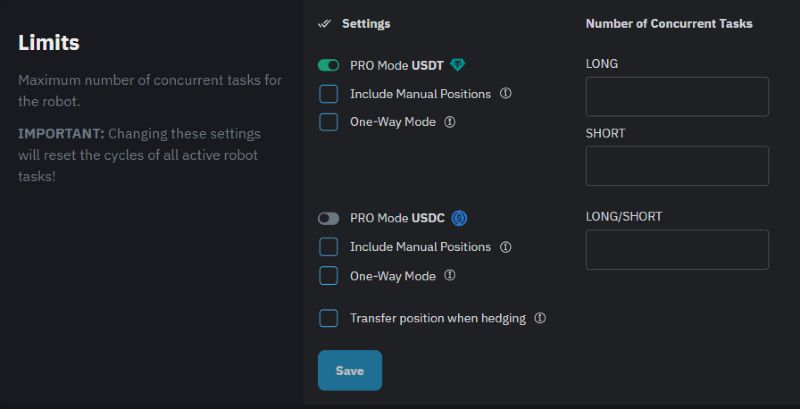
In the Settings Restrictions block, the settings are divided into **USDT** and **USDC**. They set the number of simultaneously active tasks.
Two variants of limits in the English interface.
* **PRO mode** is turned off use the **LONG/SHORT** general limit.
* **PRO mode** is enabled set separate **LONG** and **Short** limits.
* Consider the hand positions consider the hand positions and other tools in the limitations of the position.
* One-way mode prohibits a robot from opening trades contrary to the existing position. It's the rule of the robot itself; the Binance position mode is set separately in the API key block.
Before saving, consider the page warning: changing these settings will cancel out the cycles of all the robot's active tasks.
Enter whole non-negative values and click Save in this block. After you update, check the saved numbers and switches.
The name PRO mode refers to the limit scheme here. The terms and conditions of subscription and payment are described in the article [FREE / PRO, subscription and payment](/en/account/free-pro-and-vip-terms-and-payment.md).
### Transfer of position at the hedge
The same block has a switch to forward position at the hedge. The tip warns: when the opposite position is opened, the robot takes all orders off and stops escorting the trade, passing it to the user or the hedging system.
Consider the implications for the trade that's already open. The parameter is saved by the Save block of restrictions button. After the update, check its actual status.
### The blacklist
The blacklist lists the assets that are prohibited from creating robot tasks.
1. Select assets from the available list and click Save.
2. To add multiple text assets, use Add one list, select each asset from a new row, and click Add. Names are taken from the available catalog.
3. To remove the records, select them from the current list and click **Delete the selected ones**. The Delete button clears the list. These teams are leaving immediately.
After you update, check the list. The addition of an asset to the blacklist should not be considered as confirmation of the closure of an existing position.
### The Telegram notifications
In **The notification** block, select the events you want to receive messages from @I\_Trading\_Bot, and click the Save this block button separately. — [@I\_Trading\_Bot](https://t.me/I_Trading_Bot)
The available event list is uploaded to your robot. Points with a star that are not available for editing are managed by the service. After reopening the page, check which flags are still in place.