> For the complete documentation index, see [llms.txt](https://docs.itradingbot.net/llms.txt). Markdown versions of documentation pages are available by appending `.md` to page URLs; this page is available as [Markdown](https://docs.itradingbot.net/en/bybit-robot/bybit-first-task-and-launch.md).
# Bybit: first task and launch
In the task, you select the trading pair, the direction, volume and the exit rules of the typical Bybit robot. Check them before you save: the successfully created ISignal task for Exchange Account is already enabled and can run as set.
### Get the robot ready .
Sign in your own Bybit account or select an [Exchange Account](/en/account/exchange-accounts/exchange-account-creation-and-setup.md). — [My own Bybit account](/en/bybit-robot/bybit-robot-connecting-your-own-account.md) Open the Bybit robot tasks and verify the account you selected. — [The tasks of Bybit-robot](https://app.itradingbot.net/bybit-robot)
If the screen suggests you turn on the robot, go to its settings. — [The settings](https://app.itradingbot.net/bybit-robot-settings) Before you click Start, check the robot's existing tasks and limitations. The robot's activation allows it to work; it doesn't confirm the trade's opening.
### Fill the constructor
Open **The task designer**. The values already shown in the form are not ready-made trading settings.
1. Choose the right pair of tools available. Each pair is assigned a task; when you first create it, check the entire list of selected pairs carefully.
2. Fill in the Task Name and select the direction in **The strategy**: **Long / short** field.
3. Check the **Leverage** and the order volume. The volume here is the first order and is set in the stablecoin, and the safety orders are set separately.
4. Enter the number of safety orders and the number of active orders at the same time. Check the safety orders Steps, Price Dynamics and Martingale: They determine the distance and volume change of subsequent orders.
5. Select the **Profit mode**. For **Take Profit**, please indicate the percentage of the outlay. The Take Profit-free mode does not issue such a closing limit order. If you're using a stop-market, check the SM field, % (from the entry point). In Exchange Account, it is opened by the Stop-Market switch.
If the form has identified errors, correct them before you create them. The leverage limitations, the availability of tools and the number of tasks allowed are the choice of the robot and account.
### Select the signal and the number of cycles
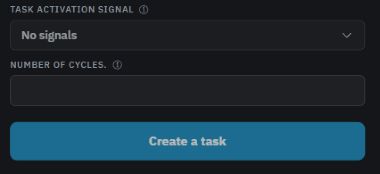
In the Signal field, there are two options.
Without signals, it creates a task for manual launch via the rocket icon in the task list.
ISignal uses the conditions from the signal designer. Add the appropriate indicators and filters to the respective blocks. For Exchange Account, the selected ISignal without a single indicator is not stored. The signal type of this task cannot be changed after creation for another type, a separate task is needed.
Check the number of cycles. When you open the new form, you see one cycle. The value −1 means repeat without a given number of completions. The clue warns: subsequent cycles are triggered without re-checking the initial signal conditions. Consider this before launch, not after opening the position.
### Save and check the status
English form Bybit This is a demonstration of the interface: the task was not created. The Create disabled flag is not here.
Bybit doesn't have a flag Create a disconnected. Click Create a task after checking all the settings.
**Exchange account.** The manual task is kept on, but its creation does not initiate the trade itself. The ISignal task is activated when the signals are successfully registered and can start working under their conditions. If the line is registered incorrectly, it may already exist and remain off.
Your **Own API account.** Once you save it, find the task in the list and check its actual status. If it's turned off and you're ready to work, select Turn on the line menu and confirm the action.
Check the name, pair, direction, volume, leverage, signal and cycle of each line you create. If there's an error or a connection is lost, update the list first. Re-sending a form can create duplicates; in Exchange Account, the result of a packet may vary for individual tasks.
### Run the manual task
For the Signalless mission, the missile icon is used. She sends a launch team and can lead to a real trade.
In Exchange Account, this command bypasses the limitations on the number of simultaneous transactions and unilateral trades. So before you click, check the open positions and volumes. The task checks and the already open position checks are kept on the same pair and direction.
Wait for the update on **The active trades** block and check the order and position in the terminal. Neither the line added nor the message about the accepted order confirms the execution of the order on the exchange.
### Shutting down and completing work
To disable the task, select Disable in the line menu and confirm the action. In Exchange Account, this stops new ISignal launches, and the already started series of cycles continues.
Check the active trade separately: Disabling the task and Stop in the robot settings is not confirmation of the position closing. List management, cycle rolling, cancellation and closing of trades are described in the article [Tasks of the Bybit robot](/en/bybit-robot/bybit-robot-tasks.md).