> For the complete documentation index, see [llms.txt](https://docs.itradingbot.net/llms.txt). Markdown versions of documentation pages are available by appending `.md` to page URLs; this page is available as [Markdown](https://docs.itradingbot.net/en/bybit-robot/bybit-robot-tasks.md).

# Bybit robot tasks

<mark style="color:$tint;">On the task page, you can check the settings of a typical Bybit robot, find the right task, turn it on or off, and see active trades. The page is available for your own API connection and Exchange Account on Bybit. It's a separate tool from the hedge robot.</mark>

### Open the robot you want

1. <mark style="color:$tint;">Select an account in the dashboard header and open the Bybit robot's tasks. —</mark> [<mark style="color:$tint;">The tasks of the Bybit robot</mark>](https://app.itradingbot.net/bybit-robot)
2. <mark style="color:$tint;">Check that the correct account tasks are open. If you haven't already connected, start with the instructions for your own Bybit or</mark> [<mark style="color:$tint;">Exchange Account</mark>](/en/account/exchange-accounts/exchange-account-creation-and-setup.md)<mark style="color:$tint;">. —</mark> [<mark style="color:$tint;">My own account at Bybit</mark>](/en/bybit-robot/bybit-robot-connecting-your-own-account.md)
3. <mark style="color:$tint;">If the task is closed with a message that the robot is off, go to the robot's settings and check its condition. —</mark> [<mark style="color:$tint;">The robot settings</mark>](https://app.itradingbot.net/bybit-robot-settings) <mark style="color:$tint;">Incorporating a robot doesn't mean opening a trade immediately.</mark>

### What the list shows

<figure><img src="https://1830394604-files.gitbook.io/~/files/v0/b/gitbook-x-prod.appspot.com/o/spaces%2F6lHX8ZJXkBHNJALLsrDj%2Fuploads%2FLtKh92POLAohLlobJ8xg%2Fbybit-tasks-list-en-20260914.jpg?alt=media" alt="A list of Tasks with search, filters, group operations and two demonstration tasks: No Signal and ISignal"><figcaption><p>Two demonstration lines; trading parameters are not set, real tasks and trades are not created.</p></figcaption></figure>

<mark style="color:$tint;">One line one saved task: its name, tool, direction, basic grid and exit parameters, leverage, cycles and signal. The manual tasks and ISignal tasks are counted separately; the header also shows how many tasks are still available to add.</mark>

<mark style="color:$tint;">The task involved and</mark> <mark style="color:$tint;"></mark><mark style="color:$tint;">**The task with the active trade**</mark> <mark style="color:$tint;"></mark><mark style="color:$tint;">different states. The signal task can be turned on and wait for the entry conditions. When a trade is already under way, some of the actions on the line become unavailable.</mark>

<mark style="color:$tint;">Without signals, the task is to manually launch a rocket button. ISignal Click on the ISignal to see its indicators and available information on the latest updates.</mark>

### Find the right tasks

<mark style="color:$tint;">In the</mark> <mark style="color:$tint;"></mark><mark style="color:$tint;">**Name or pair**</mark> <mark style="color:$tint;"></mark><mark style="color:$tint;">field, type the part of the task or tool name. You can also select tasks by status, name, pair, direction and type of signal. The selection criteria work together.</mark>

<mark style="color:$tint;">Click the heading of the sorting column. In the computer version, the list is broken down into 50 pages of tasks; the Show All switch extracts the entire selected list. It's a way of showing, not limiting the number of tasks a robot has.</mark>

<mark style="color:$tint;">The active task bar in the title leaves current trades tasks and marks them for group actions. Before the team, check the number of tasks selected.</mark>

### Turn on, off or delete the sample

1. <mark style="color:$tint;">Make sure you mark the lines. The common taskbar selects the appropriate tasks from the entire filtered list, not just the current page.</mark>
2. <mark style="color:$tint;">Check the</mark> <mark style="color:$tint;"></mark><mark style="color:$tint;">**Group operations**</mark> <mark style="color:$tint;"></mark><mark style="color:$tint;">counter. The transition between pages doesn't take off.</mark>
3. <mark style="color:$tint;">Select Selected to enable,</mark> <mark style="color:$tint;"></mark><mark style="color:$tint;">**Selected to disable**</mark><mark style="color:$tint;">, or</mark> <mark style="color:$tint;"></mark><mark style="color:$tint;">**Selected to delete**</mark> <mark style="color:$tint;"></mark><mark style="color:$tint;">and confirm.</mark>
4. <mark style="color:$tint;">Wait for the results. If you failed to complete some of the tasks, read the notification and check the remaining sample before repeating.</mark>

<mark style="color:$tint;">Group inclusion and deletion misses the tasks of an active trade. The shutdown of this task is available, but it's a separate command from the position closure. The signal is not deactivated in your own API connection or Exchange Account.</mark>

<mark style="color:$tint;">Removing removes the saved task. For Exchange Account, the server will reject deletion if the selected set still has an active run. Check the updated list after the action.</mark>

### Running by rocket button

<mark style="color:$tint;">The missile is available at the Signalless task, which is not yet an active trade. Before you click, check the account, the tool, the destination, the volume and the exits: the button sends the trading command.</mark>

<mark style="color:$tint;">For Exchange Account: manual launch of the rocket bypasses the robot's quantitative limitations and the ban on counter-entry. So check the positions you're in and the volume you're allowed to handle separately. Bypassing does not allow you to start an already active task or take the same pair and side where there is already an active task or a non-zero position.</mark>

<mark style="color:$tint;">Press the rocket and wait for the Active Deals update. The receipt of the order has not yet confirmed the execution of the order. If the boot is not confirmed or an error is shown, check the current state first, then decide if a repeat is needed.</mark>

### Watch the active trades

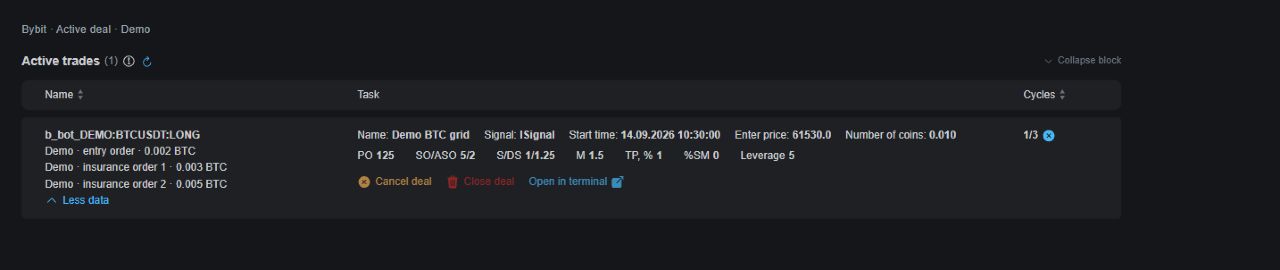
<mark style="color:$tint;">Below the task list is</mark> <mark style="color:$tint;"></mark><mark style="color:$tint;">**The active trades**</mark> <mark style="color:$tint;"></mark><mark style="color:$tint;">block. It shows the robot's current work: the tool and direction, volume, entry price, task parameters, and cycle counter. The update icon reads the data.</mark>

<mark style="color:$tint;">The details available depend on the connection. The list of orders inside the trade is not displayed in all modes. Check the actual orders and positions also in the trading terminal: the task table does not replace the exchange.</mark>

<mark style="color:$tint;">The number of cycles refers to the repetition of the task and does not indicate the number of orders executed or its financial result.</mark>

<figure><img src="https://1830394604-files.gitbook.io/~/files/v0/b/gitbook-x-prod.appspot.com/o/spaces%2F6lHX8ZJXkBHNJALLsrDj%2Fuploads%2Fd5POQgH71GphXQNLoMuo%2Fvisual-pass-20260914-bybit-active-deal.jpg?alt=media" alt="Demonstration example of an active trade BybitThe values are not for the real account."><figcaption><p>Demonstration example of an active trade BybitThe values are not for the real account.</p></figcaption></figure>

### The completion of the trade

<mark style="color:$tint;">The commands described are the same in Bybit's own API connection and Exchange Account. Before you do anything, check your account and the trade you want.</mark>

<mark style="color:$tint;">The discontinuation of the cycles makes the current cycle the last in this series. The robot continues to accompany him; the orders already issued by this command remain unchanged. To drop, click the active trade cycle counter and confirm the action.</mark>

<mark style="color:$tint;">Canceling a trade cancels the order for that trade and stops its operation. The open balance of the position can be kept on the exchange.</mark>

<mark style="color:$tint;">Closing a trade cancels a trade order and sends a market order to close the remaining position. The execution takes place at market prices.</mark>

<mark style="color:$tint;">Cancellation and closing are in the process of being activated and require confirmation. These teams need a working robot. Then wait for the data update and check the position and order.</mark>

<mark style="color:$tint;">If you need to stop future signal entries, turn off the signal task separately. Disconnecting the current series and disconnecting the signal solve different tasks. Stopping the robot in settings is not a command to cancel orders or close positions.</mark>