> For the complete documentation index, see [llms.txt](https://docs.itradingbot.net/llms.txt). Markdown versions of documentation pages are available by appending `.md` to page URLs; this page is available as [Markdown](https://docs.itradingbot.net/en/signals-and-strategy-conditions/isignal-entry-filters-and-exit.md).
# ISignal: entry, filters, and exit
ISignal links the conditions of the indicators to the actions of the trading robot. In the constructor, you'll set the entry, filter, and exit separately. The available indicators and their parameters depend on the selected exchange and the task mode.
### Three parts of the signal
**The entrance** is the main launch signal. If filters are added, they also need to be cleared to open.
The **Filters** check the additional conditions. All the filters you've added must be in order to allow entry. In the absence of a basic indicator, the filter set can form a launch command itself when conditions allow for entry.
**The exit** sets individual signals to close. It's enough to run one suitable exit indicator; its performance depends on the response and the task settings you choose.
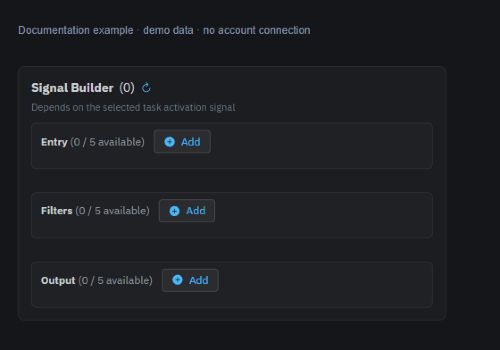
Next to each part is a counter of the added and available cards. Focus on it: the limit is taken from the settings of the current account and the robot.
### Collect the conditions
The successful signal task is immediately turned on for signal processing on the Bybit Exchange Account. If the robot works, the conditions can lead to trade after storage. For preliminary training, use a stopped robot and then check the task's status separately.
1. Open the task designer of the robot you want and select ISignal in the task activation signal field.
2. In the Signal Designer block, click Add in the appropriate part: entry, filters, or exit.
3. Select an indicator from the list and fill in the fields. Timeframes, periods, levels and other parameters are available according to the chosen role.
4. Click Add to the list. The card will appear in the designer. Check the task direction and all the conditions.
5. Before you save, check the robot's volume, exit, cycle and limit. Adding the card doesn't save the task yet. The order of creation and launch depends on the robot it is described for Bybit and Binance.
A demonstration example of a designer ISignal With the entrance, the filter, and the exit.
The terms for a typical backtest are described separately in the [AI strategy builder](https://docs.itradingbot.net/ai-strategy-builder) section this is a technical guide in English for the user's AI assistant: indicators, their fields, permissible values, and the link format that fills the backtest form. The section does not advise you: the set of conditions you collect on it remains your hypothesis and requires self-checking, and how much the assistant can use them depends on his ability.
### The reaction of the filter and the exit indicator
Check the filter field **When you exit the filter**. It determines the response to loss of permission: among the available options are cycle cancellation and the shutdown command. So the filter can also affect the task that's already started.
Check the exit indicator when you receive the signal. In normal mode, market closures and deviations are available. These options have different conditions. In Binance's average mode, the set of actions can be different.
The cancellation of cycles allows the current cycle to be completed and the subsequent cycles to be stopped. The market closing team completes the active position with a separate action. This is the same in Binance's own API connections and Bybit's Bybit Exchange Account. The actual execution takes place on the exchange.
### Bypassing the Bybit Exchange Account
To take **The deviation** into account, enter a positive value in the Task Deviation field. The threshold is calculated from the average price of the position: for a long above it by a given percentage, for a short below.
When the threshold is reached, the signal is sent to the market closing team. If the threshold is not yet reached, the working series stops the following cycles; no immediate shutdown occurs on this signal.
The empty field, zero and −1 are transmitted without deviation. In this case, the action with deviation does not execute the closure. To exit without this check, the card has the Sell by Market action. The order described applies to Bybit Exchange Account.
The price threshold cannot guarantee a final profit: the result depends on the price of execution and the costs of the trade.
### When the signal doesn 't lead to a trade
The condition of the indicator is just one of the checks. The robot and the signal task must be turned on, the filters must allow entry, and the robot's constraints must allow a new position.
Bybit Exchange Account also does not re-enter if this task is already working or if the position on the same pair and direction is already occupied. The final result can be checked by a list of tasks, active trades and orders.
If the designer reports an error in loading the indicator directory, update the page and wait for it to load before adding or changing the signal task.