> For the complete documentation index, see [llms.txt](https://docs.itradingbot.net/llms.txt). Markdown versions of documentation pages are available by appending `.md` to page URLs; this page is available as [Markdown](https://docs.itradingbot.net/en/tools/calculations-and-verification/backtester-first-calculation.md).

# Backtester: first calculation

<mark style="color:$tint;">Backtester shows how the entry, exit, and averaging conditions would work on historical data. Calculation helps to understand the behavior of the strategy and to test its configurations. It doesn't open up real trades, and the result in history doesn't guarantee future profitability.</mark>

### Select the exchange, pair and mode

<figure><img src="https://1830394604-files.gitbook.io/~/files/v0/b/gitbook-x-prod.appspot.com/o/spaces%2F6lHX8ZJXkBHNJALLsrDj%2Fuploads%2FEXpTGwUSUZtOYFjxOBr8%2Fbacktest-setup-en-20260914.jpg?alt=media" alt="English form of settings BacktesterExchange, Asset, Balance Operation Mode, direction, Mode and date of calculation."><figcaption><p>Form before asset selection and date. It shows the initial state of the interface, not the recommended strategy settings.</p></figcaption></figure>

<mark style="color:$tint;">Open the Baxter and sign in. —</mark> [<mark style="color:$tint;">Backtester</mark>](https://app.itradingbot.net/backtest-new) <mark style="color:$tint;">In</mark> <mark style="color:$tint;">**The settings**</mark> <mark style="color:$tint;">block, select the exchange, asset and direction long or short.</mark>

<mark style="color:$tint;">Choose the average you want to check:</mark>

* <mark style="color:$tint;">Mediate with limit orders use safety orders of the grid.</mark>
* <mark style="color:$tint;">Average using signals set the average conditions through indicators. For this mode, you need to add an indicator with an average action, otherwise the calculation button will remain unavailable.</mark>

<mark style="color:$tint;">First, select the exchange and the mode, then add the indicators: changing the exchange or the mode clears the designer's cards.</mark>

<mark style="color:$tint;">To check one setup on multiple assets, use the separate Multivariate: Check strategy on multiple assets.</mark>

### Please specify the period

<mark style="color:$tint;">Fill in Start and End of calculation through the calendar or select a quick period under the fields. Check both dates before launch.</mark>

<mark style="color:$tint;">The available history depends on the pair you choose and the data you have. The beginning should not be before the listing of the pair, and the end should be before the beginning. The listing C button helps to set the start date, but it doesn't confirm the absence of a history pass.</mark>

### Enter the balance and order settings

<mark style="color:$tint;">In the</mark> <mark style="color:$tint;">**Money management**</mark> <mark style="color:$tint;">block, please indicate the accounting deposit, the size of the first order, the leverage and the margin type. Check the commission for the limit and the market order: they're expressed as a percentage and affect the outcome of the model.</mark>

<mark style="color:$tint;">Use the Balance-Based Mode to indicate how to take the result into account in subsequent trades. Withdrawal options are a balance model; they do not send funds from an exchange account.</mark>

<mark style="color:$tint;">In the</mark> <mark style="color:$tint;">**Risk management**</mark> <mark style="color:$tint;">block, check the profit margin, the stop-and-go, the number of safety orders, the step, the dynamic step and the marginal. The values in the form are the starting parameters of the calculation that you need to match with your verified idea.</mark>

### Add a break-even stop

<mark style="color:$tint;">For a Bybit calculation, the bottom of</mark> **Risk Management** <mark style="color:$tint;">contains a</mark> **Break-even stop** <mark style="color:$tint;">switch and fields for its trigger and stop level. Both values use the current average position price and are recalculated after averaging. BE is unavailable together with hedge.</mark>

<mark style="color:$tint;">The fields, validation, example and robot-transfer restrictions are covered in</mark> [Break-even stop](/en/tools/calculations-and-verification/break-even-stop.md)<mark style="color:$tint;">.</mark>

### Set the terms of the strategy

<mark style="color:$tint;">In the constructor , click Add in the appropriate section:</mark>

* <mark style="color:$tint;">The entry is an indicator for the entry conditions.</mark>
* <mark style="color:$tint;">**Filters**</mark> <mark style="color:$tint;">additional conditions.</mark>
* <mark style="color:$tint;">exit closing conditions; in signal mode, the averaging is also set.</mark>

<mark style="color:$tint;">Select the indicator and fill in the available parameters, including the asset and timeframe, if any. Read the description in the Settings window, then click Add. Check the card you got. Use the edit icon to correct, to remove the basket.</mark>

<mark style="color:$tint;">The number of cards available is shown next to the name of each section. An empty entry section does not mean a ban on trading in the model: the calculation can open trades without an entry indicator, taking into account the other conditions.</mark>

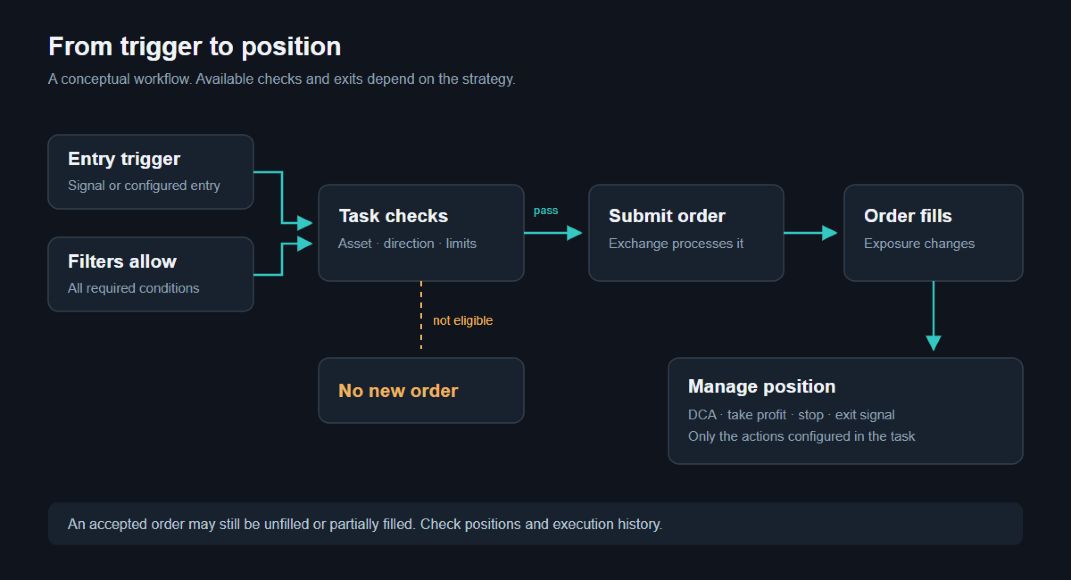
<figure><img src="https://1830394604-files.gitbook.io/~/files/v0/b/gitbook-x-prod.appspot.com/o/spaces%2F6lHX8ZJXkBHNJALLsrDj%2Fuploads%2FS3CJfpo3buLZqsOYtMfh%2Fdocs-edge-fix-20260914-robot-cycle-diagram.jpg?alt=media" alt="A demonstration example of the logic of the task: the entry conditions and the permissive filters allow the order to be sent after checking. The position changes after execution; the average and exit depend on the settings. The order received is not necessarily fully executed."><figcaption><p>A demonstration example of the logic of the task: the entry conditions and the permissive filters allow the order to be sent after checking. The position changes after execution; the average and exit depend on the settings. The order received is not necessarily fully executed.</p></figcaption></figure>

<mark style="color:$tint;">The setting of the counter position for historical calculation is described in the article Classic hedge in backstory.</mark>

<mark style="color:$tint;">The settings of this form and the link that fills it can be compiled by your AI assistant: a technical guide to</mark> [<mark style="color:$tint;">AI strategy builder</mark>](https://docs.itradingbot.net/ai-strategy-builder) <mark style="color:$tint;">is published for it in English and lists available indicators, their parameters and the link format. The manual does not recommend anything: the collected setup card is checked and run by you, and whether the particular assistant can work with it depends on his ability.</mark>

### Run the calculation

<mark style="color:$tint;">The multi-mode is VIP tools and is available for purchase of a PRO for one year. The terms of subscription are summarized in the articles FREE, PRO and VIP.</mark>

<mark style="color:$tint;">Check the pair you've chosen. If you use Multimode, the calculation will be based on the pair list you marked, not just the asset in the top field. For each pair, a separate result is formed.</mark>

<mark style="color:$tint;">Click Count and follow the progress reports. If the settings are rejected, correct the specified field or condition. Access to additional modes and limitations depend on the account; focus on the available switches and service messages.</mark>

<mark style="color:$tint;">For stopping, use Cancel. The suspension may not be complete immediately. If you see a result after that, check the actual calculation period and the completion message before comparing it to the full calculation.</mark>

### Open the result

<mark style="color:$tint;">After the page is finished, the results are added. If the transfer didn't happen or you came back later, click Archives and find your account. —</mark> [<mark style="color:$tint;">The archive</mark>](https://app.itradingbot.net/backtest-results-new)

<mark style="color:$tint;">Start by checking the stock market, the pairs, the period, and the completion reports. Then examine the trades, the commission, the drawdown and the remaining open position, if any. Before you transfer settings to the robot, check separately for compatibility of the settings and the conditions of the real trade.</mark>