> For the complete documentation index, see [llms.txt](https://docs.itradingbot.net/llms.txt). Markdown versions of documentation pages are available by appending `.md` to page URLs; this page is available as [Markdown](https://docs.itradingbot.net/en/tools/calculations-and-verification/backtester-results-and-archive.md).
# Backtester results and archive
After the calculation, open the result and check what data it contains. The bottom line is that it's only part of the report. The next important thing is the period, the commission, the drawdowns and the position that could have stayed open.
### Open the saved account
If you haven't done the calculation yet, start with the first launch instructions. — [instructions for first launch](/en/tools/calculations-and-verification/backtester-first-calculation.md)
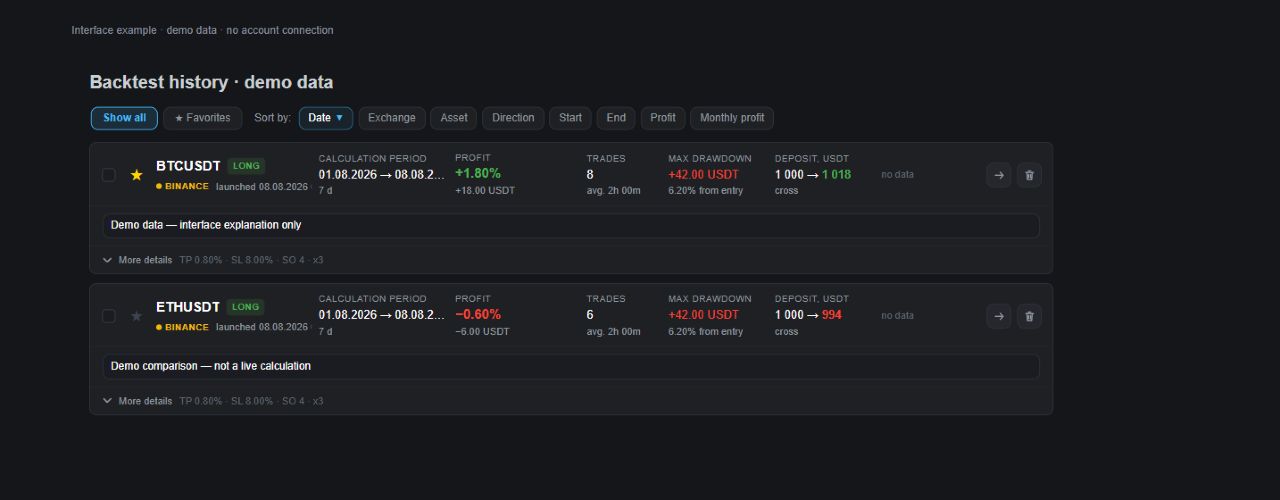
Go to Backtest History or click on the Backtest file. — [The history of the backstory](https://app.itradingbot.net/backtest-results-new) Find the launch date, the exchange, and the instrument, and then open the result. The calculation of several instruments is a general record with individual asset results.
First, compare the actual dates and the completion report. This status doesn't mean a profitable strategy. After cancellation or error, only part of the selected period may be available.
A demonstration example of a calculation archive.
### Read the summary
In the Backtest Results tab, look at the total profit, commission, number of transactions and exit reasons: take-profit, stop, signal or liquidation. The indicators are for model trades.
The overall profit takes into account the result of the completed transactions and the chosen model outcome. The open position is shown separately: its assessment cannot be considered a fixed result. Backtester commissions depend on the rates introduced; funding is not included in the usual model.
**Monthly profit, %** is the derivative of this historical calculation. It doesn't mean that every month has given the same result, and it doesn't predict the next month.
Compare the drawdowns to their names. The transition from the first entry price, the average price and the peak to the next minimum uses different reference points. In the indicators marked "no stops of salmon" trades completed with stops are excluded; this is not a complete history.
A demonstration of the backtest result summary. The indicators are conditional and do not describe the profitability of the real strategy.
### Find out the individual trades
Go to **The trade**s tab. Use search, column sorting and page switching. The graph button in the row moves to the selected trade. A long trade may require a scroll or a larger timeframe to see both the entry and exit.
Compare the time of entry and closing, prices, average and drawdown. The chart shows a historical model; it does not confirm that similar requests would be fulfilled on a real exchange.
The CSV download download downloads the transaction file of the selected calculation. The search and current table page do not limit this file.
### Compare the results of several tools
As a result, there are filters available for status, symbol, profit, drawdowns and duration of the trade. The duration is set in hours; the position left open at the end of the calculation is taken into account.
The sum from above is recounted by the filtered lines. The profit amount and the average percentage combine to separate instrument calculations. This is not a simulation of trading the entire list at once with one common deposit.
Open a separate line for details. The general table download saves the rows after filtering and sorting; the specific transaction file is downloaded separately for the selected tool.
Preparing for such a launch is described in the article Multivariate: Checking Strategy on Multiple Assets. — [Multivariate: checking the strategy on several assets](/en/tools/calculations-and-verification/multi-test-testing-a-strategy-on-multiple-assets.md)
### Check break-even-stop closures
A single result shows BE closures as a separate segment, outside the regular stop count. Multi-results add a **Closed by BE** column, a summary value, and a separate CSV column.
The archive's collapsed row shows the saved trigger and level. During transfer, only a supported Bybit Exchange Account can be selected; a stopped compatible robot is also selectable, but trading starts after it is enabled. See [Break-even stop](/en/tools/calculations-and-verification/break-even-stop.md).
### Add the description and the selected one
In **The strategy** description field, write down what you have checked and what parameters you have changed. In its own calculation, the description is saved after the field is left or the combination Ctrl+Enter / Cmd+Enter. Wait for the markings.
Click the star to add the count to the selected one. In the archive, the Select switch helps get back to those launches. The multi-mode general record star applies to all the results of this launch.
For your copy of important results, save the CSV and the settings description. Adding the selected data to the device itself doesn't download the data.
### Repeat the calculation or move the settings
**The strategy** tab shows the settings of the saved calculation. The application opens the form Backtester with them: check the fields, make changes and run the new calculation.
**Copy the link** copies the link to the Backtester form with these settings. This is different from the address of the open results page.
**Creating a task** translates the settings into the shape of a robot. For Bybit, select a receiver in the open window; for Binance, the shape of its robot opens. The transition itself doesn't create a task and it doesn't start a trade. Before you create, check your account, tool, volume, leverage, signals, and exit rules in the shape of a robot.
### Delete the unnecessary calculation
In the archive, click Delete from the required record and confirm the action. Deleting the general record of the multi-mode refers to the entire run, including its individual tools.
For multiple records, use check boxes and Delete selected ones. The selection can be saved when you switch between the pages and the archive modes: check the number of records selected before confirming. After the operation, the updated list shows what is left; the lack of allocation does not in itself confirm the successful deletion of each record.