> For the complete documentation index, see [llms.txt](https://docs.itradingbot.net/llms.txt). Markdown versions of documentation pages are available by appending `.md` to page URLs; this page is available as [Markdown](https://docs.itradingbot.net/en/tools/calculations-and-verification/order-grid-optimizer-in-the-backtester.md).

# Order grid optimizer in the Backtester

<mark style="color:$tint;">The optimizer takes the set of parameters from the history and shows the past selection of options. This instruction applies to the cloud optimizer inside the Backtester. Selection doesn't create a warrant or launch a robot.</mark>

### Prepare the original settings

<mark style="color:$tint;">If you haven't worked with a Backtester yet, start with the first calculation and read the model limitations. —</mark> [<mark style="color:$tint;">first count</mark>](/en/tools/calculations-and-verification/backtester-first-calculation.md) <mark style="color:$tint;">—</mark> [<mark style="color:$tint;">The limitations of the model</mark>](/en/tools/calculations-and-verification/backtester-model-parameters-and-limitations.md)

<mark style="color:$tint;">Open the</mark> [<mark style="color:$tint;">Backtester</mark>](https://app.itradingbot.net/backtest-new) <mark style="color:$tint;">and the grid optimizer tab. In this interface, it is accessible with VIP access.</mark>

<mark style="color:$tint;">VIP tools are included in the PRO when you buy a one-year subscription. For more information on the terms see the article</mark> [<mark style="color:$tint;">Free, PRO and VIP</mark>](/en/account/free-pro-and-vip-terms-and-payment.md)<mark style="color:$tint;">.</mark>

<mark style="color:$tint;">Choose an exchange, one instrument, a direction and a period. Check the deposit, leverage, margin, commission and indicator terms. These settings are used when selecting along with the optimizer ranges.</mark>

<mark style="color:$tint;">One cloud launch takes only one instrument. If you've used multi-mode before, remove the extra marks from the list: the selected tools have priority over the single selection field.</mark>

### Connect your own Modal account

<mark style="color:$tint;">The cloud computing uses the computations in your Modal account. Open the</mark> <mark style="color:$tint;">**Modal keys**</mark><mark style="color:$tint;">, go to How to get the Modal keys? and move your own Token ID and Token Secret to the relevant fields. These are the keys to the computing service, not the API keys to the exchange.</mark>

<mark style="color:$tint;">The entered keys are stored in this browser. Cleaner removes them from form and local storage; the token itself is retrieved in Modal. Do not include key values in screenshots or support messages.</mark>

<mark style="color:$tint;">Cloud computing costs are your Modal account. Check the current terms of payment for Modal before you launch. —</mark> [<mark style="color:$tint;">Payment terms of Modal</mark>](https://modal.com/docs/guide/billing) <mark style="color:$tint;">Value Value in the optimizer result estimate of computational time, not final account.</mark>

### Set the range of the switch

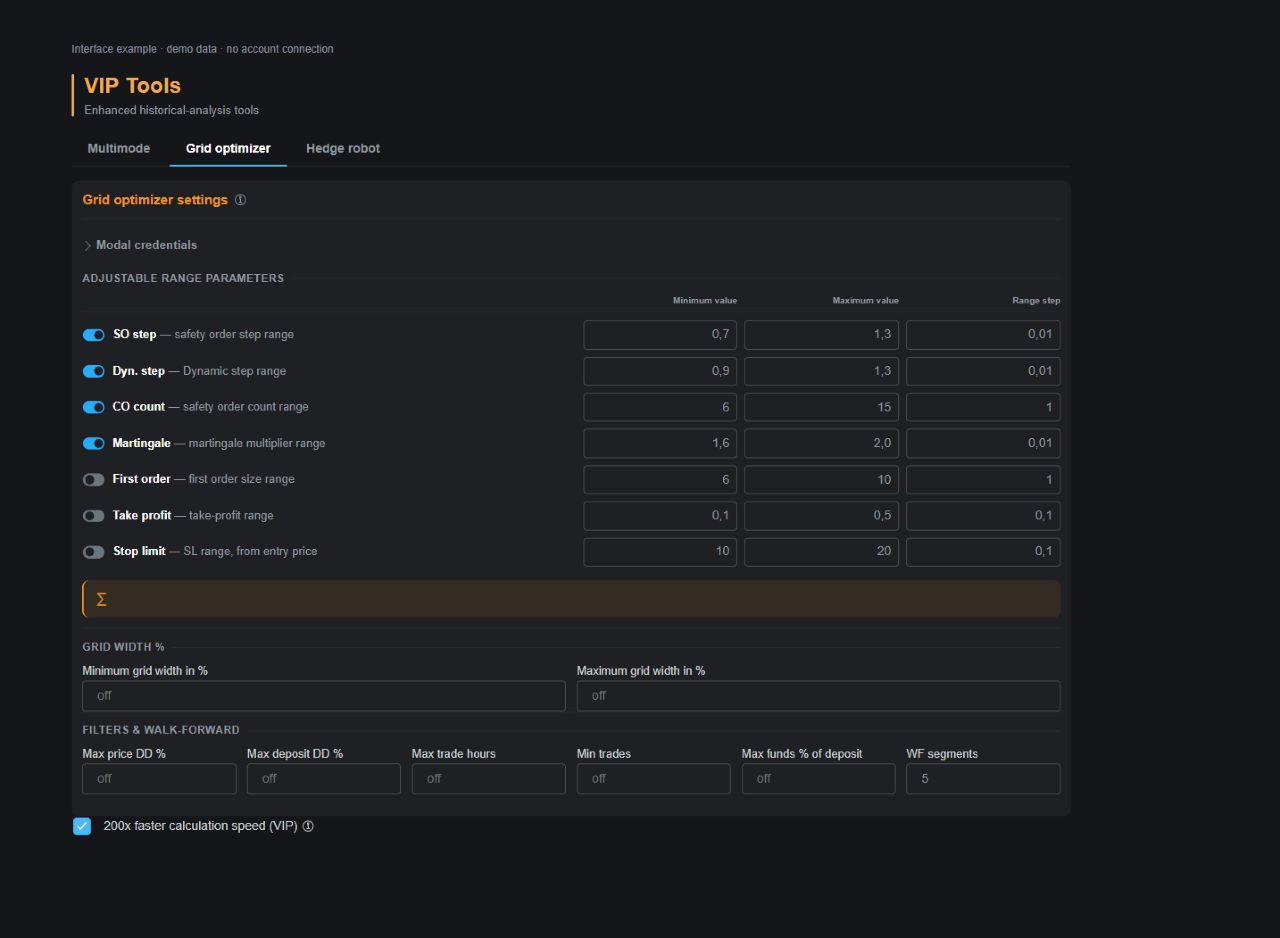
<mark style="color:$tint;">Turn on switches only for the parameters you want to change: grid step and dynamic step, number of insurance orders, marting, first order, take-profit or stop.</mark>

<mark style="color:$tint;">For the included parameter, fill in the</mark> <mark style="color:$tint;">**Minimum value**</mark><mark style="color:$tint;">,</mark> <mark style="color:$tint;">**Maximum value**</mark> <mark style="color:$tint;">and Range Step. The last field specifies the distance between the parameters being checked. It's different from a trade-off between orders.</mark>

<mark style="color:$tint;">The deactivated parameter remains fixed: its current value is taken from the main form. The first order is set by the volume in the currency of the quotation, the net step and exit in percentages, the dynamic step and the martinggeal multipliers, the number of CO as a whole number.</mark>

<mark style="color:$tint;">The number of combinations is shown under the ranges. It's equal to multiplying the number of values by the included transition directions. A smaller step increases the workload; exceeding the available limits may stop the start even before the calculation.</mark>

<figure><img src="https://1830394604-files.gitbook.io/~/files/v0/b/gitbook-x-prod.appspot.com/o/spaces%2F6lHX8ZJXkBHNJALLsrDj%2Fuploads%2FOH8wD15xcbr92zCfa0hm%2Fvisual-pass-20260914-backtest-optimizer-ranges.jpg?alt=media" alt="A demonstration example of the optimizer range BacktesterThe values are used to explain the form of the transition."><figcaption><p>A demonstration example of the optimizer range BacktesterThe values are used to explain the form of the transition.</p></figcaption></figure>

### Account for the fixed break-even stop

<mark style="color:$tint;">When BE is enabled in the main Bybit form, the optimizer applies one trigger/level pair to every variation and does not optimize it. The line below the variation count shows the fixed pair.</mark> **Apply best** <mark style="color:$tint;">restores the pair used by that run.</mark>

<mark style="color:$tint;">A BE closure increases the total trade count but may be absent from the optimizer's current closure-reason breakdown. The displayed reasons can therefore sum to less than total trades. See</mark> [Break-even stop](/en/tools/calculations-and-verification/break-even-stop.md) <mark style="color:$tint;">for the full behavior.</mark>

### Set the selection and walk-forward

<mark style="color:$tint;">If necessary, limit the price drop, the deposit drop, the maximum time of the trade in hours and the minimum number of trades. You can set the width of the net in percentages and the maximum amount of deposit required for the entire order ladder, including the leverage. The blank field disables the appropriate user filter.</mark>

<mark style="color:$tint;">In addition to your filters, the optimizer throws out options with a miscalculation, liquidation, or no transactions. If the list is empty, see what stage the options were excluded at. This is not an automatic reason to relax the limitation: check the entry data and the reasons for the exclusion first.</mark>

<mark style="color:$tint;">One segment is the calculation of the entire period. For several segments of Walk-Forward, the selected history is divided into sections; an additional calculation of the full period is performed. Variants are ranked by the average segment profit, and the limitations on drawdown and duration are checked for the worst segment values.</mark>

<mark style="color:$tint;">This kind of analysis uses the history you've chosen. It is not a test for future data and does not guarantee the sustainability of the strategy after launch.</mark>

### Run the selection and read the result

<mark style="color:$tint;">Click Start Grid Optimize and follow the status. Uploading history and preparing calculations are part of the waiting; GPU running time is only part of it. For the termination, use Cancel. After the connection is lost, check the current startup status first so you don't send a second calculation.</mark>

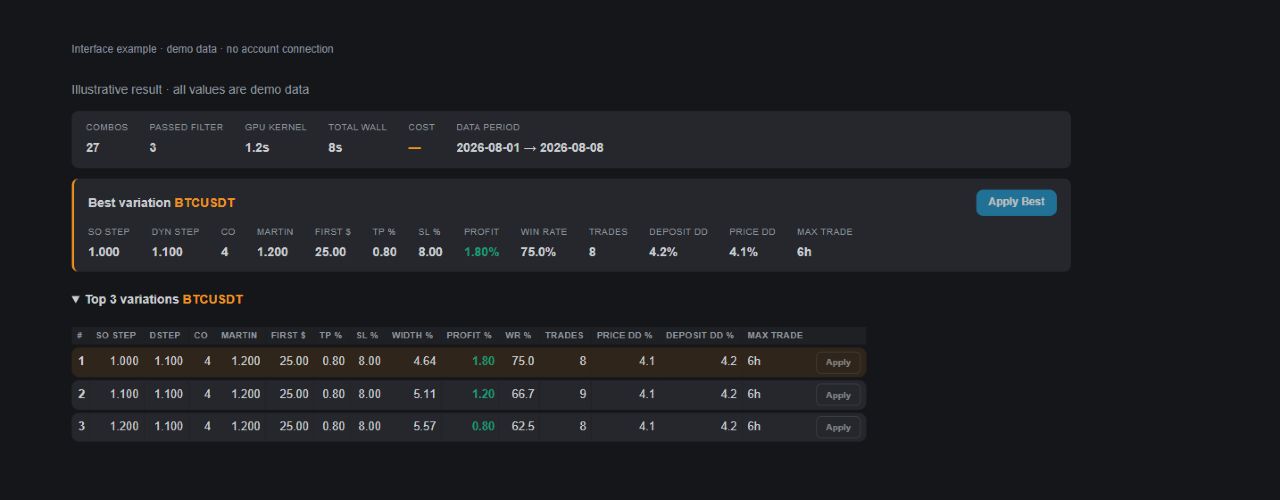
<mark style="color:$tint;">Compare</mark> <mark style="color:$tint;">**The data period**</mark> <mark style="color:$tint;">with the dates you requested, the number of combinations and the number of filters you've passed. The dates shown do not guarantee that there are no passes within the history.</mark>

<mark style="color:$tint;">The service returns up to 30 options. For one segment they are selected by full-time profit, for Walk-Forward by average profit of segments. So the first line in Walk-Forward doesn't have to have the maximum profit of the full period in the table. The column sort changes the order of the lines already obtained.</mark>

<mark style="color:$tint;">Compare the parameters, number of trades, share of profitable trades, drop-offs and duration. Best variation means first place among tested combinations by the selected selection regime, not a recommendation for trading.</mark>

<figure><img src="https://1830394604-files.gitbook.io/~/files/v0/b/gitbook-x-prod.appspot.com/o/spaces%2F6lHX8ZJXkBHNJALLsrDj%2Fuploads%2Fh3pjy7S8FZMigb0uaAg2%2Fvisual-pass-20260914-backtest-optimizer-results.jpg?alt=media" alt="A demonstration example of optimization results in Backtester. Comparing options requires checking the period, the constraints and the initial strategy."><figcaption><p>A demonstration example of optimization results in Backtester. Comparing options requires checking the period, the constraints and the initial strategy.</p></figcaption></figure>

### Move the selected settings

<mark style="color:$tint;">Click</mark> <mark style="color:$tint;">**Apply**</mark> <mark style="color:$tint;">in the correct line. The grid values and the available values of the first order, the taek-profit and the stop are set to the basic Backtester form. Check the exchange, the instrument, the dates and the indicators separately: this button does not replace all the original settings.</mark>

<mark style="color:$tint;">Then run a regular backtest to sort out the trades and get a separate result in the archive. The use of parameters alone does not trigger calculations or trades. The last result of the optimizer is stored in the browser; it is not a record of a regular back-text archive.</mark>

<mark style="color:$tint;">The result depends on historical data and model assumptions. The commission introduced does not confirm the exchange rate; funding, actual orders and slipping are not reproduced. Increasing the number of combinations tested does not guarantee a result in real trading.</mark>