> For the complete documentation index, see [llms.txt](https://docs.itradingbot.net/llms.txt). Markdown versions of documentation pages are available by appending `.md` to page URLs; this page is available as [Markdown](https://docs.itradingbot.net/en/tools/market/market-info-market-metrics.md).

# Market Info: market metrics

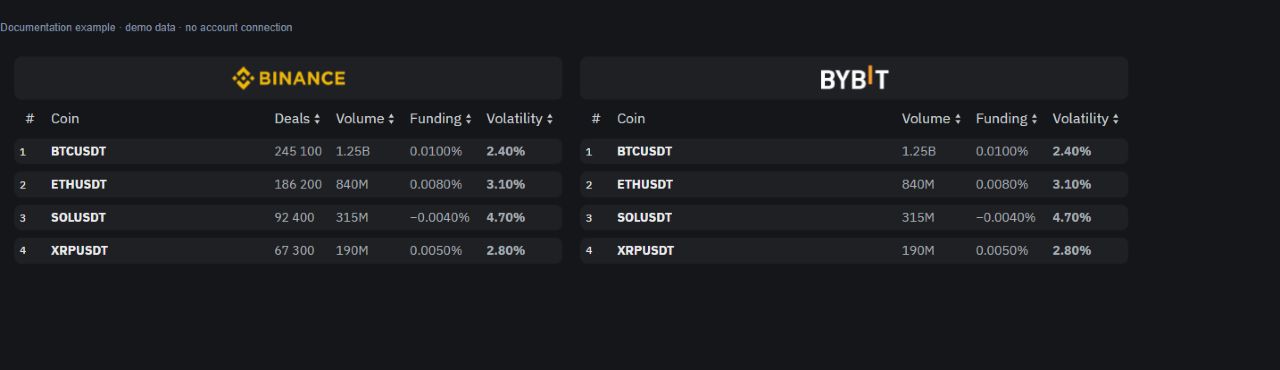
<mark style="color:$tint;">Market Info collects Binance and Bybit futures market data on one screen. Here you can compare the trading activity of the instruments, the volatility and the funding, and then you can open the pair you choose in the terminal.</mark>

### Open the right exchange

<mark style="color:$tint;">Go to Market Info. —</mark> [<mark style="color:$tint;">The Market Info</mark>](https://app.itradingbot.net/market-info) <mark style="color:$tint;">On the big screen, Binance and Bybit data are located next to each other. When you're on compact display, select the switch.</mark>

<mark style="color:$tint;">It's the market performance of the instruments. They don't reflect your balance, your warrant, or your account results.</mark>

<figure><img src="https://1830394604-files.gitbook.io/~/files/v0/b/gitbook-x-prod.appspot.com/o/spaces%2F6lHX8ZJXkBHNJALLsrDj%2Fuploads%2FumTCISZirT4DIMvKvCuq%2Fvisual-pass-20260914-market-info.jpg?alt=media" alt="A demonstration example Market Info And the volume, the volume, the volume, the volume, the volume, the volume, the volume, the volume, the volume, the volume, the volume, the volume, the volume, the volume, the volume, the volume, the volume, the volume, the volume, the volume, the volume, the volume, the volume, the volume, the volume, the volume, the volume, the volume, the volume, the volume, the volume, the volume, the volume, the volume, the volume, the volume, the volume, the volume, the volume, the volume, the volume, the volume, the volume, the volume, the volume, the volume, the volume, the volume, the volume, the volume funding and volatility - Conditional."><figcaption><p>A demonstration example Market Info And the volume, the volume, the volume, the volume, the volume, the volume, the volume, the volume, the volume, the volume, the volume, the volume, the volume, the volume, the volume, the volume, the volume, the volume, the volume, the volume, the volume, the volume, the volume, the volume, the volume, the volume, the volume, the volume, the volume, the volume, the volume, the volume, the volume, the volume, the volume, the volume, the volume, the volume, the volume, the volume, the volume, the volume, the volume, the volume, the volume, the volume, the volume, the volume, the volume, the volume funding and volatility - Conditional.</p></figcaption></figure>

### Compare the volume and number of transactions

<mark style="color:$tint;">**Coin**</mark> <mark style="color:$tint;"></mark><mark style="color:$tint;">designation of the trading pair.</mark>

<mark style="color:$tint;">Volume the volume of trades in the last 60 minutes, calculated by the minute candles in the quoted currency. The abbreviations K,</mark> <mark style="color:$tint;"></mark><mark style="color:$tint;">**M**</mark> <mark style="color:$tint;"></mark><mark style="color:$tint;">and B are thousands, millions and billions.</mark>

<mark style="color:$tint;">**Deals**</mark> <mark style="color:$tint;"></mark><mark style="color:$tint;">number of market transactions in the last 60 minutes. This column is only available to Binance; it doesn't count your personal trades.</mark>

### Read the funding and volatility

<mark style="color:$tint;">**Funding**</mark> <mark style="color:$tint;"></mark><mark style="color:$tint;">current interest rate of funding. Consider her sign. The value in the column is not the sum of the calculations for your position.</mark>

<mark style="color:$tint;">**Volatility**</mark> <mark style="color:$tint;"></mark><mark style="color:$tint;">A smooth estimate of the relative magnitude of minute candles with a period of 60, expressed as a percentage. It shows the magnitude of the fluctuations inside the candles and does not indicate the direction of price movement.</mark>

<mark style="color:$tint;">This figure should not be read as an hourly price change. To learn the movement itself, open the chart of the pair you choose.</mark>

### Sort the list

<mark style="color:$tint;">Click on the heading of the indicator. When you select a new column, the values are high above; pressing again changes the sorting direction. The order is set for each exchange.</mark>

<mark style="color:$tint;">Funding is sorted by size without taking the sign into account, so the largest negative rate per module can be higher than the positive. The sign itself in the line is preserved.</mark>

<mark style="color:$tint;">This rule applies to Market Info. In other platform tools, sorting of funding may work differently.</mark>

### Open the pair in the terminal.

<mark style="color:$tint;">Click the pair. A new tab will open the Binance or Bybit terminal with the selected tool.</mark>

<mark style="color:$tint;">Before you proceed, check the terminal's account and market header. Switching from Market Info doesn't send the order by itself. The device of the work screen is described in</mark> [<mark style="color:$tint;">The terminal</mark>](/en/trading-terminal/trading-terminal-overview.md) <mark style="color:$tint;">review.</mark>

### Consider updating the data

<mark style="color:$tint;">The indicators change as market data comes in. If the page has been inactive for a long time or the connection has been disconnected, wait for the update when you return. The numbers left on the screen don't confirm that the data is current.</mark>

<mark style="color:$tint;">Use Market Info to compare tools and move on to learning them. The position of the pair on the list is not a command or a recommendation to open a trade.</mark>
