> For the complete documentation index, see [llms.txt](https://docs.itradingbot.net/llms.txt). Markdown versions of documentation pages are available by appending `.md` to page URLs; this page is available as [Markdown](https://docs.itradingbot.net/en/trading-terminal/connecting-accounts-to-the-terminal.md).
# Connecting accounts to the terminal
To use your exchange account in the trading terminal, add it to the terminal settings. Binance Futures and Bybit Futures accounts are connected here.
### Open the terminal settings
Log in to ITradingBot and complete the Telegram link. If you haven't already, start with the article "Register and enter". — [Registration and entry](/en/account/registration-sign-in-and-account-recovery.md)
Open the [Terminal settings](https://app.itradingbot.net/terminal-settings). The Access to Exchanges block has separate listings of Binance and Bybit.
The keys to the trading robots are added to the robots' settings. If such an account is already displayed in the terminal list, use the Control link through the Robot Settings in the link line to manage it.
### What to check on the exchange
* **Binance Futures:** **Hedge mode** requires a two-way position mode to connect.
* Bybit Futures: **Unified** trading account and **Hedge mode**. When connected, the mode is checked for the BTCUSDT pair.
To manually connect Bybit, you need a key that meets the requirements of ITradingBot. If you're making it for the first time, make sure you specify the way it's made in the [support](https://t.me/ITradingBot_Support). There, you can also specify the necessary permissions and IP access settings for Binance or Bybit hand keys.
Do not include the withdrawal authorization in the key.
For a manual connection, come up with a unique name that's up to 32 characters long. Use letters, numbers, and singular spaces, without spaces at the beginning and end. The name shouldn't start with Robot.
### Connect to Binance Futures
For Binance, the terminal settings use a manual API key input.
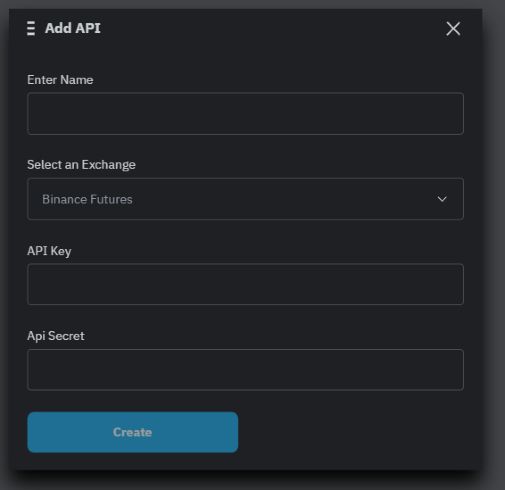
1. In the Binance list, click Add API.
2. In the Name field, enter a clear name for the connection to distinguish it from other accounts.
3. Check that the Select Exchange box shows **Binance Futures**.
4. Enter the prepared values in the **API Key** and **Api Secret** fields.
5. Click Create and wait for an account to appear in the list. If the service has declined to connect, read the error message.
Adding a connection Binance Futures at the terminal, fields left empty.
### Connect Bybit Futures
In the Bybit list, click Add API. In the window that opens, select the method of connection.
**Main account**
1. You'll have to choose **The main** one.
2. On the Bybit page, follow the steps suggested. Check which account you're logging in to and which permissions you're confirming.
3. Once you're back in ITradingBot, open the terminal settings and check that the account appears in the Bybit list.
**Sub-account with ready API key**
1. Select Sub account.
2. Enter the name of the connection and check **Bybit Futures**.
3. Fill the **API Key** and **Api Secret** fields with the required sub-account keys.
4. Click Create and wait for the result.
### Check and turn on the connection
Find the account by name and exchange. It shows a portion of the API key and the connection status.
1. If the account is not yet active, click Start and wait for the status update.
2. For the account that is running, click Status. If you check it successfully, you'll see the message Access is connected.
Stop is used to stop the connection. **The status** button on the account that has been suspended says that the account is not started.
If you add multiple accounts, you can access the default one by using the Make a default. Before placing an order, check the selected account at the terminal itself.
### If you need to remove the connection
For a self-added account, click the basket icon in the line. Make sure you've selected the right connection and confirm removal.
Accounts managed by a robot or a section of an exchange account may be linked to the relevant section instead of these actions. Manage these connections wherever this link leads.
### If there is an error
When you manually type, make sure the name is filled in, and API Key and API Secret are for the same account and are copied without any extra characters. If the key or name is already in use, the service will notify you.
The add button becomes inaccessible when the connection limit is reached. Do not delete your work account just to verify this instruction.
If the reason for the refusal is unclear, contact ITradingBot support. — [support for ITradingBot](https://t.me/ITradingBot_Support) Please indicate the exchange, the method of connection and the exact error text. Do not send API Key and API Secret; hide their personal data in the screenshot.