> For the complete documentation index, see [llms.txt](https://docs.itradingbot.net/llms.txt). Markdown versions of documentation pages are available by appending `.md` to page URLs; this page is available as [Markdown](https://docs.itradingbot.net/en/trading-terminal/order-grid-optimizer-in-the-terminal.md).
# Order grid optimizer in the terminal
The optimizer in Binance and Bybit Futures terminals transcribes grid parameters without indicator signals. First, he counts on the options of history. You can then save the selected option, view it on a graphic or use it to configure the robot.
### Select the tool and the mode of calculation
Open the [Binance terminal](https://app.itradingbot.net/terminal-binance) or Bybit terminal, select the tool on the chart and block **The grid optimizer**. — [The Bybit terminal](https://app.itradingbot.net/terminal-bybit) Type the name of the tool at the top of the block and select a long or short.
GPU mode performs the calculation in the browser: it uses a video card, and when it is not available processor. The history is uploaded online. This mode requires an available browser cache; maximum period 92 days. Leave the page open until the end of the calculation.
Modal mode uses cloud computing in your Modal account. In the Modal key tab, go to the key link and fill in the Token ID and Token Secret. They're stored in this browser. The cleaning button removes the local storage; the token is retrieved in Modal.
Modal keys are not required for GPU mode. For cloud launch, check Modal's terms and conditions in advance: the costs are related to your account, and the cost shown by the optimizer is an estimate. — [Payment terms of Modal](https://modal.com/docs/guide/billing) Don't put the keys in the screenshots.
### Fill in the original data
Enter the beginning and end of the period, deposit model, leverage, margin type and commission maker and taker. Commissions in the form should be compared with your trading conditions: the fields filled out do not in themselves confirm your exchange rate.
The deposit here is used to calculate the model. Changing this field doesn't replenish the trading account. The calculation relates to the chosen direction and grid without signals; the conditions of indicators from another constructor are not transferred here.
### Set a break-even stop for Bybit
The Bybit optimizer has fields for the **BE trigger** and **BE stop level**. The pair is fixed for every variant and has no optimization range. Two empty fields mean disabled; supplying only one value is an error.
Each result row and saved favorite keeps its own BE pair. Transfer to the **Order grid**, robot creation and direct launch apply it only to a supported Bybit Exchange Account. With another robot, BE remains off or the action is blocked. See [Break-even stop](/en/tools/calculations-and-verification/break-even-stop.md).
### Set the settings
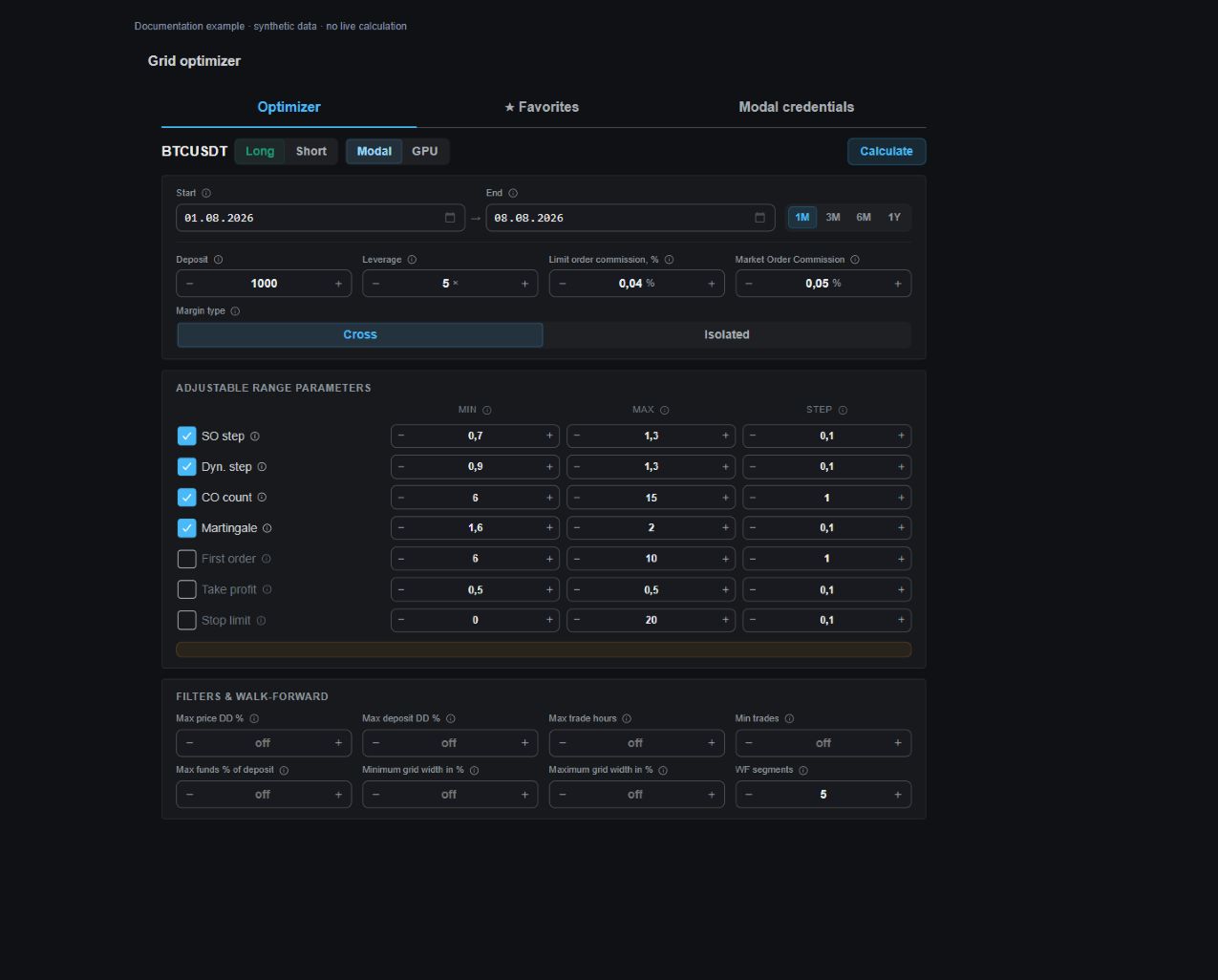
Turn on the override of the necessary parameters: the grid's step and dynamic step, the number of insured orders, the marting, the volume of the first order, the take-profit and the stop.
Fill in Min, Max and Shag in each line. The last field specifies the interval between the parameters being checked. The final number of combinations is shown under the ranges.
If the overlay is turned off, the optimizer uses one fixed value from its Min field. It remains available for editing. Check the off lines before you count.
The net step, the taek-profit and the stop are set in percentages; the dynamic step and the martinggeil are multiples. The number of insurance orders is an integer. The volume of the first order determines the size of the order, not the amount of its margin. The pre-filled values are not a trade recommendation.
A demonstration of the transition ranges in the terminal optimizer.
### Enter the selection conditions and start the calculation
Filters limit the permissible drop, the duration of the trade, the use of funds and the width of the grid, and set the minimum number of trades. An empty field or zero turns off the filter. Check the units next to the field, for example, the duration is in clock.
The WF Segment field defines the period check. For the value of 1, one calculation is used; the larger value adds calculations by segments. In this mode, the selection takes into account the results of the segments, and the order of the best options is determined by the average profit on them. It's a check on the same history you've chosen, not a confirmation of future earnings.
Click Count and track the launch status. This button starts the selection of parameters. If the ranges exceed the computation limit, reduce the number of combinations or periods according to the form message.
### Read the result and save the option
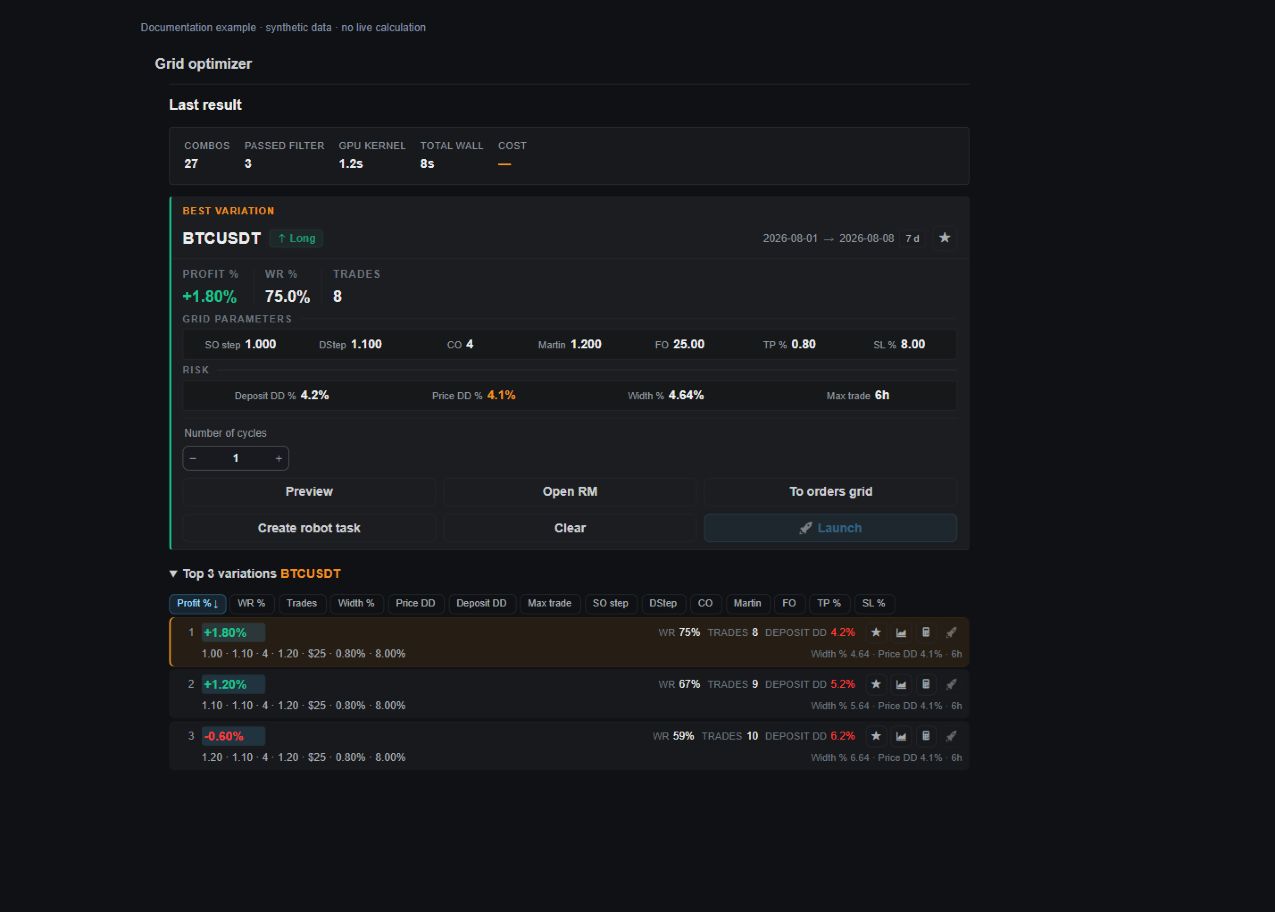
The result is up to 30 past selections. Compare the profit, the number of transactions, the share of profitable transactions, the time and duration of the transactions with the actual period of data. When checking segments, the profit in the main line is for the full period and may differ from the indicator for which the best option was chosen.
The star keeps the option in the **Selected** tab. It's a search, destination selection and removal of saved options. The selected data is stored in this browser separately for the exchange; clearing the browser data may delete it.
The result depends on the history, model and mode of computation. Profit on history does not guarantee profit on real trade. Changing the shape settings after the calculation doesn't recount the old ones.
A demonstration of the results of the terminal optimizer.
### Look at the net and open the robot shape.
The preview draws the grid levels on the chart relative to the current price. For a saved version of another tool, the graphic can be switched to that tool. Preview cleaning clears the lines off the schedule.
Opening the RM opens the risk calculation for the selected grid. Check the deposit, leverage and current instrument limitations before you rate.
**Creating a robot** opens up the choice and form of creating a task with the parameters you've prepared. At this step, the task is not yet launched. Compare the fields moved into a shape: the configuration depends on the type of robot.
When working with a fresh result, the leverage and the margin type are taken from the current fields of the optimizer. If you changed them after the calculation, the data saved describes the previous calculation. Before you move, check these fields and the tool again.
### Check the direct start separately
The Start button is available for the connected robot. It sends the task creation and launch teams for real trading. Check your account, tool, direction, volume, leverage, net and cycle count.
The Grid-robot of Bybit's exchange account bypasses the quantitative limits of active tasks and the single-directional mode. Checks on an already active task and a busy pair with the same direction are maintained.
Once confirmed, check the robot's task and the status of the orders on the exchange. Creating and running can be separate steps: if you make a mistake, first check the status of the task you've already created. The message that the team has been sent or accepted does not confirm the execution of the order.