> For the complete documentation index, see [llms.txt](https://docs.itradingbot.net/llms.txt). Markdown versions of documentation pages are available by appending `.md` to page URLs; this page is available as [Markdown](https://docs.itradingbot.net/en/trading-terminal/orders-in-the-futures-terminal.md).
# Orders in the futures terminal
In the terminal, you can send the order manually, change it on the schedule and cancel the remaining order. Below actions in Binance and Bybit's desktop futures terminals with separate sides of long and short. The tracking terminal works on a different scheme.
### Check the account and the market
1. Open up the [Binance terminal](https://app.itradingbot.net/terminal-binance) or [The Bybit terminal](https://app.itradingbot.net/terminal-bybit).
2. Check the account in the hat, **The future**s tag and the trading pair. For your own account, first set up a connection to the terminal. — [Connecting to the terminal](/en/trading-terminal/connecting-accounts-to-the-terminal.md) You can also choose your Exchange Account on Bybit.
3. Check position mode: These forms work with separate long and short **Hedge mode**. The unilateral regime should not be considered interchangeable with it.
4. Before you ship, check your leverage, available funds, and your open positions and orders. The value in the unpreserved leverage window does not confirm its change.
### Fill out the new order.
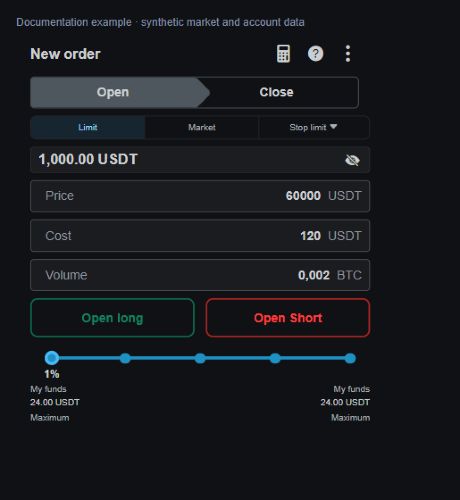
In the New Order block, select Open or Close. Then enter the order type and fill in the fields available.
* Limit Please specify the price and quantity.
* Market Enter the number for **The market** team. The price of the performance may differ from the last price on the screen.
* **Stop the limit** Enter the activation price, the limit order price and the quantity.
* **Stop the market** Enter the activation price and the amount for the market team after the conditions are set.
Check the units next to the fields: the amount of the underlying asset and the amount in the currency of the calculation are different values. To close, compare the quantity with the actual remainder of the right side of the position.
Binance has additional **Trailing stop** and **TP/SL** points. They cannot be automatically transferred to Bybit form; this instruction describes the basic types above.
A demonstration example of an order form: price, volume and calculation of own funds.
### Consider the price change in Binance
In Binance, the selected Limit Order can be sent as a conditional order. When opening a long, this happens if the price is above the current market; when opening a short, if it is lower. When the side closes, the conditions are reversed: for the long below the current price, for the short above.
In this case, the price is used for activation. After sending, check the actual order type and **The conditional** tab. Do not determine the status of the order solely by the item that was selected in the form.
### Send and check the result
When the Trade is turned off, the terminal will request confirmation with one click. If the setting is enabled, the ordering and a number of other trading commands are executed without this window.
After checking, click Open long, Open short, Close long or Close short in the selected part of the form. It sends a sales team.
After answering, check **The open orders**, Positions and History. An open order message means a response to a command, not a mandatory execution. The conditions of activation and execution of the order are also different stages.
### Change the order on the chart
The current order line can be moved at a price. Where line editing is available, open the line window, change the price or quantity, and apply the value.
Drag the current order and send the change to the exchange. An additional confirmation window for such a move does not appear even if the one-click trade is turned off.
In the Bybit warrant, the move changes the activation price. In Binance, a change in a conditional request is executed by cancelling the previous one and creating a new one. If an error occurs after the correction, check what request remains: the old order is not guaranteed to be kept.
### Cancel one or more orders
For one order, click the cancellation button in Open Orders or the cross on the schedule. Wait for the results and check the status.
Before you cancel , check the action area:
* If Hide Others is enabled, the command is for the current tool. Without this filter, it covers the tools from the open order list.
* The flags that hide the robot's orders, manuals or other sources change the display. They don't rule out such orders from mass cancellation.
* In Binance, the Basic and Conditional are canceled separately, depending on the type of list chosen. Check both tabs if you need to remove both types of orders.
Cancellation does not close a position that has already appeared in execution. If the order is partially executed, separate the executed part and the remaining order.
### Identify the history of orders and executions
The history of the warrants shows the orders and their status. The presence of a record here does not prove execution; see status and execution volume. The Show Only executed orders filter selects fully executed requests and does not replace partial execution checks.
The history of the auctions helps to check performance, prices, quantity and commission. In Binance, executions of a single order can be grouped: open the line to see the composition. In Bybit, the executions are displayed with separate lines.
If the answer is not received, an error is made or the list is not updated, first read the status of the orders and positions. Re-sending without verification can create another order.